
















A/B tests: prove a strategy before you switch
Not sure which strategy sells more in a block? An A/B test shows another strategy, or no block at all, to a share of your visitors, compares clicks and orders, and says when the difference is more than chance. Then you keep the winner in one click. Open Your shop › A/B tests.
How a test works
- Variant A is what the block shows today: its strategy in Blocks.
- Variant B is another strategy, or Hide the block (holdout), to measure what the block brings at all.
- Each visitor always sees the same variant. Visitors who see B sets their share, from 10 to 90 % (default 50 %: a result comes soonest).
- A block has one test at a time. While a test runs, its block, variants and share stay as they were when it started, so the results stay comparable.
Create and start a test
- Click New test.
- Give it a Name you recognise (only you see it) and, if you like, a Description: what you expect and why.
- Choose the Block. It must be switched on in Blocks before the test starts.
- Choose Variant B and the share of Visitors who see B.
- Optional: Minimum sample, the impressions each variant needs before a result is shown (default 200; raise it on a busy block for a surer result), and a Start date and End date.
- Click Save. The test is saved as a draft, which changes nothing on your shop. Click Start when you are ready.
A running test can be paused (Pause, then Resume): meanwhile every visitor sees variant A.
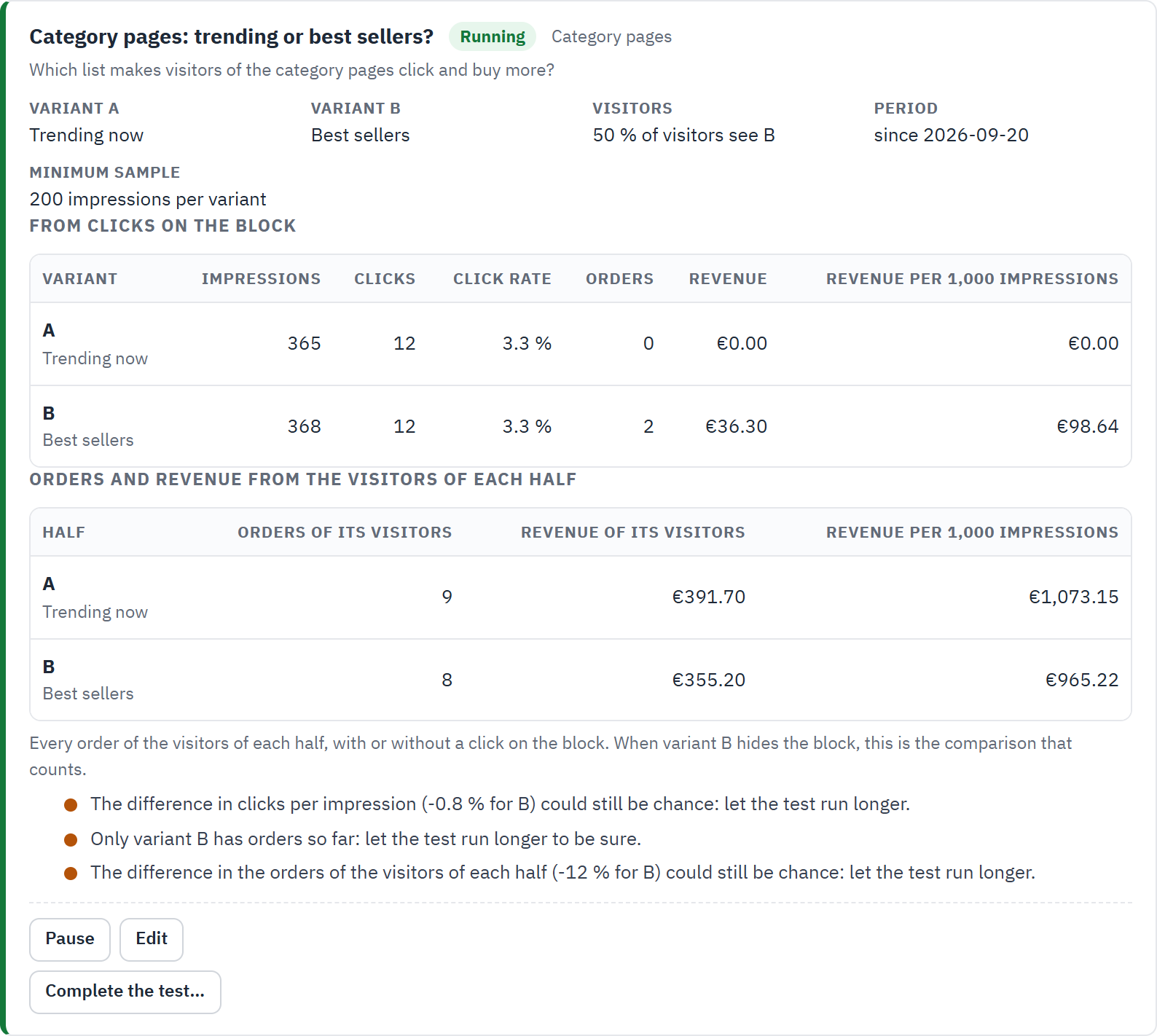
- The state of the test and its block.
- The verdicts: here the differences could still be chance, so the test should run longer.
- Pause, Edit (only the name, the description and the end date change while it runs) and Complete the test….
Read the results
Each test shows two tables:
- From clicks on the block: per variant, the impressions, clicks, click rate, the orders and revenue after a click, and the revenue per 1,000 impressions.
- Orders and revenue from the visitors of each half: every order of the visitors of each half, with or without a click on the block. When variant B hides the block, this is the comparison that counts.
Under the tables, one line per measure says which variant does better and whether the difference is more than chance, at 95 % confidence. No result is shown before each variant reached the minimum sample: early numbers swing a lot.
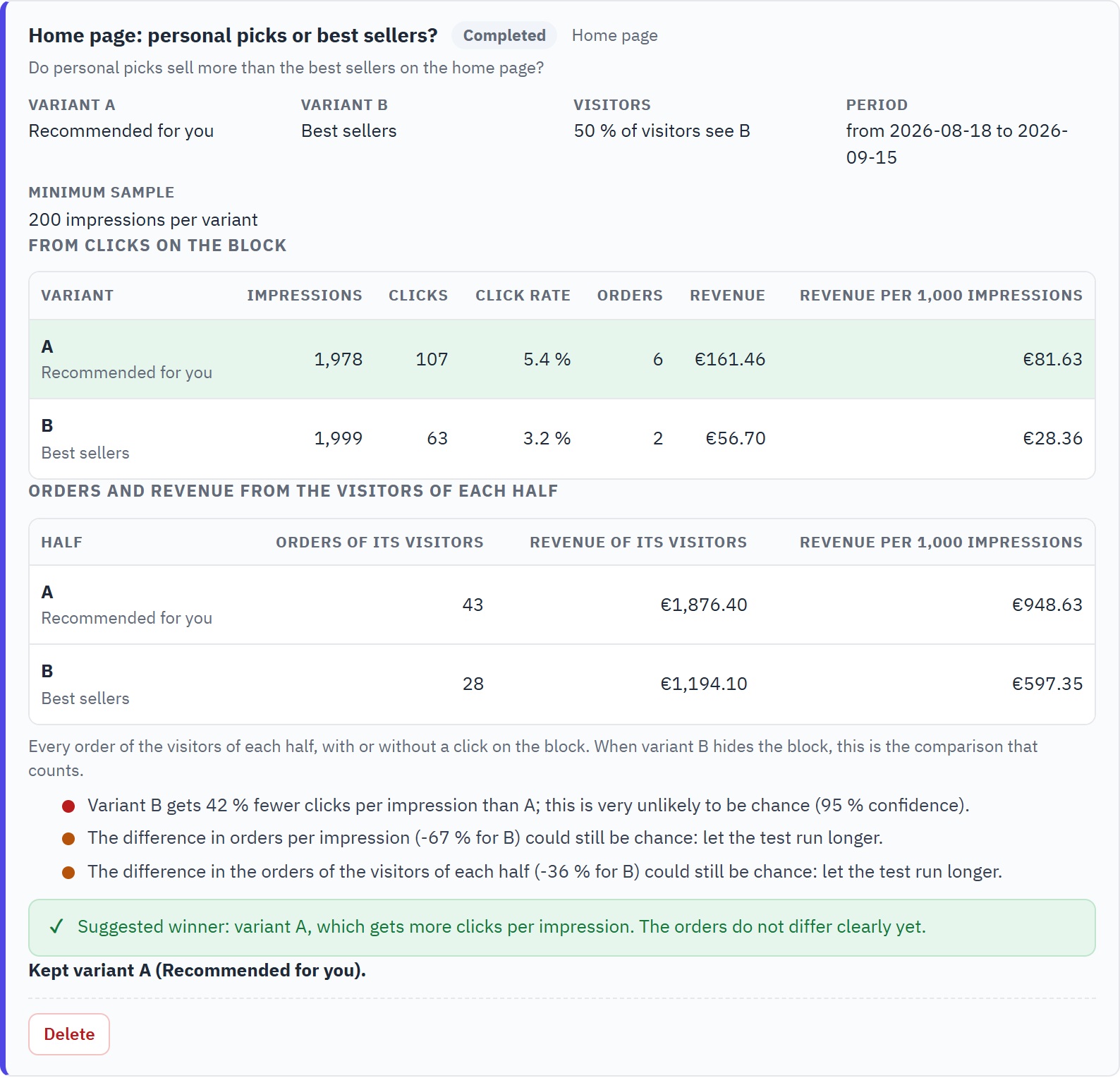
- Variant A, variant B, the share of visitors who saw B, the period and the minimum sample.
- The results from clicks on the block; the winner is marked.
- The orders and revenue of the visitors of each half.
- The verdicts: here “Variant B gets 42 % fewer clicks per impression than A; this is very unlikely to be chance (95 % confidence).”
- The variant the block kept.
Keep the winner
Click Complete the test… and choose which variant the block keeps; every visitor sees it from then on:
- Keep A: the block keeps its current strategy.
- Keep B: the block switches to the strategy of variant B (for a holdout: Keep B: switch the block off).
- Keep the block as it is: it stays as it was when the test started.
The completed test stays in the list with its results. Delete removes a test and its settings; its statistics stay in the results of the block.
Sales
Overview › Sales shows what the recommendation blocks sell: the orders placed after a click on one of your blocks, the money they bring, which blocks, strategies and products sell, and the latest of those orders.
Sales at a glance
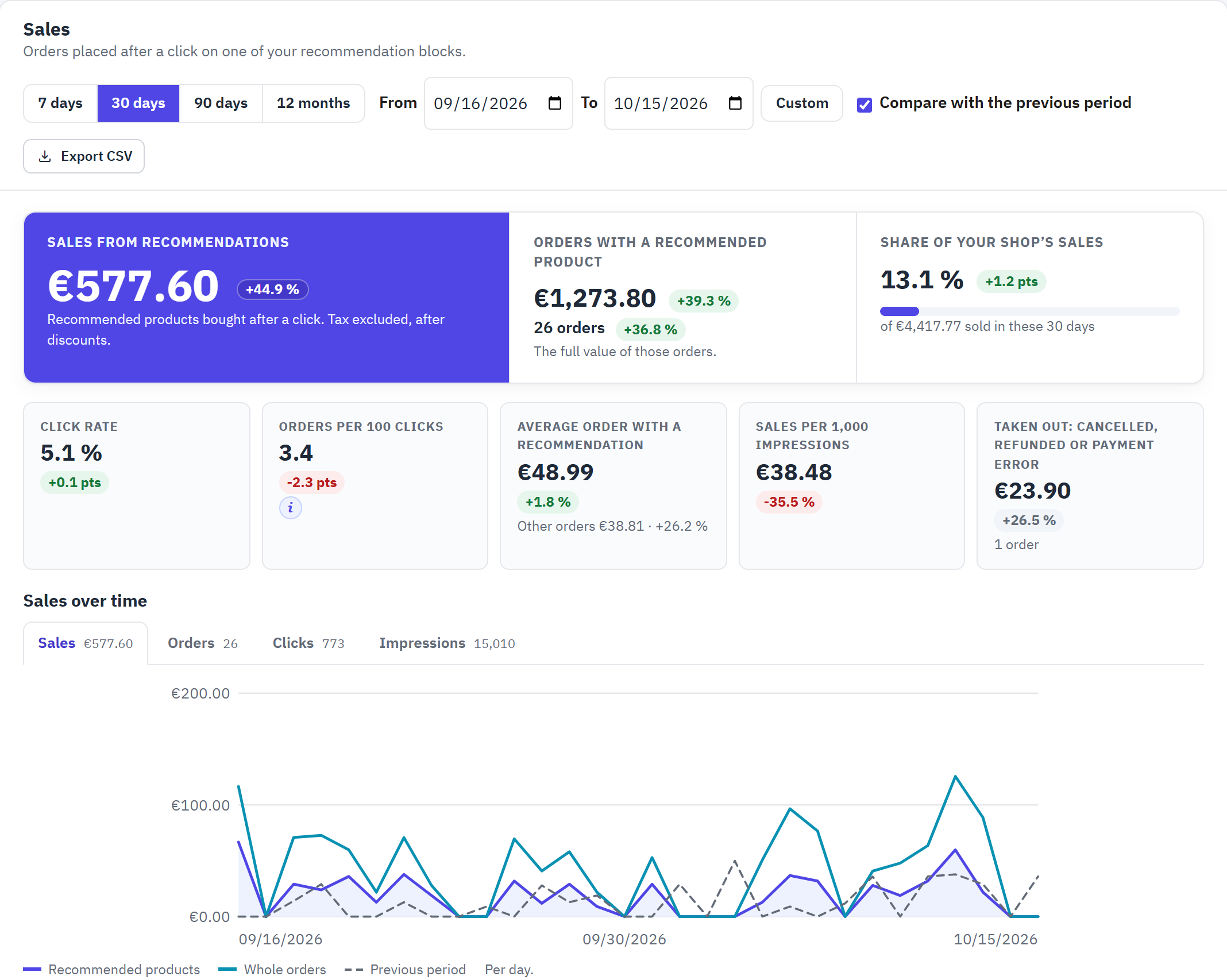
- The period: 7 days, 30 days, 90 days, 12 months, or your own dates with Custom; Compare with the previous period; Export CSV.
- Sales from recommendations: the recommended products bought after a click, tax excluded, after discounts, with the change against the previous period.
- Orders with a recommended product: the full value of those orders, and how many they are.
- Share of your shop’s sales: the part of everything your shop sold in these days.
- The five key figures (section 12.3).
- Sales over time, per day (per week for a period longer than 120 days). The tabs switch to orders, clicks and impressions; the dashed line is the previous period.
Each change compares a figure with the previous period of the same length: green when it went up, red when it went down, grey when it did not change; on the coloured Sales from recommendations card it is white. The click rate, the orders per 100 clicks and the share change in percentage points (pts). Custom dates go back at most 800 days and end today at the latest; other dates show the last 30 days. The address of the page keeps the period, the comparison and the block: bookmark it to come back to the same view.
What counts as a sale
When an order is validated, each of its products that the customer clicked in a block during the 7 days before counts once, for the block of the latest click. The module keeps the product, its quantity, its amount, the block and the strategy that filled the block, never the customer. The amount is the product’s price tax excluded less its part of the order’s discounts (a free shipping is not a discount on the products), in your shop’s default currency.
| The order’s status | How it counts |
|---|---|
| Paid: payment accepted, shipped, delivered, on backorder (paid)… | Counted everywhere. It stays counted when a payment module later gives it a status of its own, such as a partial refund. |
| Not paid yet: awaiting payment, authorized but not captured… | Listed in Latest orders from recommendations as Not paid yet, and counted as soon as it is paid. |
| Cancelled, refunded or payment error | Taken out of every figure and shown under Taken out: cancelled, refunded or payment error. |
A partial refund (a credit slip) is taken off the product it refunds and off the order. Your shop’s own sales, used for the share and the average orders, follow the same rules. The status is read each time the page opens, so a change made in Orders shows at once.
The five key figures
| Figure | What it says |
|---|---|
| Click rate | Clicks per 100 impressions of your blocks. Its change is in percentage points. |
| Orders per 100 clicks | How many orders followed 100 clicks. Its change is in percentage points. |
| Average order with a recommendation | The average value of the orders with a recommended product, next to the average of your other orders. With a block chosen, the other orders are all your other counted orders, also those with products from other blocks. |
| Sales per 1,000 impressions | What 1,000 views of your blocks bring. |
| Taken out: cancelled, refunded or payment error | The recommended products of the orders cancelled, refunded or in payment error, and how many orders. Its change stays grey. |
Blocks, products, strategies and orders
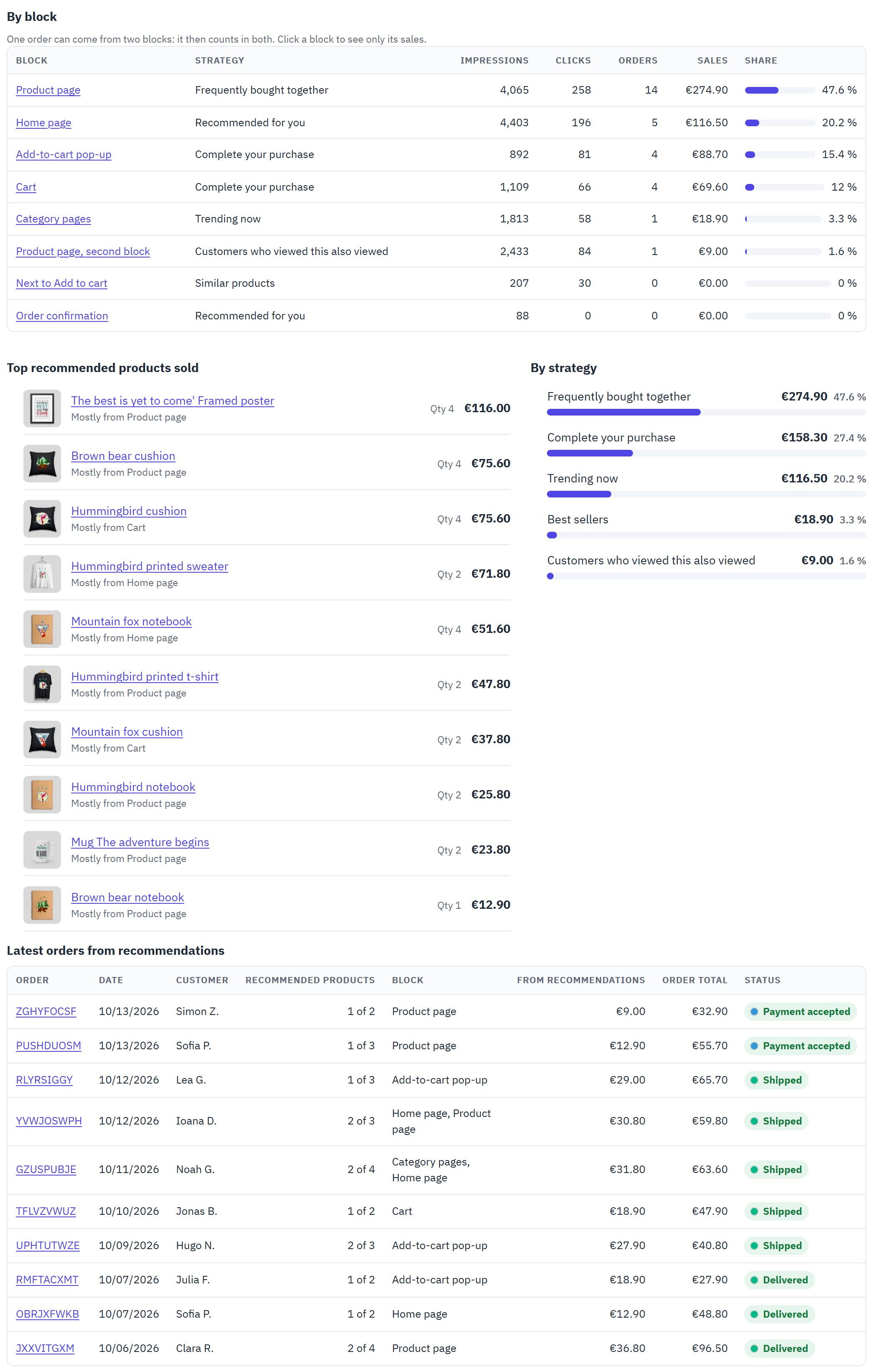
- By block: impressions, clicks, orders, sales and share of each block, with the strategy it uses now. Click a block to see the whole page for that block only; Remove shows every block again.
- Top recommended products sold: the ten best-selling, each with the block that sold most of it. The name opens the product.
- By strategy: the strategy that filled the list the customer clicked: the block’s own, or the one that took its place when it had nothing to show (“Buy it again” for a guest, for example).
- Latest orders from recommendations: the reference opens the order; “2 of 6” means that 2 of its 6 products came from a block. A green status counts, Not paid yet is amber, a red “taken out” status is left out.
An order with products of two blocks counts in both blocks, and once in the totals. Customers appear by first name and the initial of their last name, read from your orders when the page opens.
Exporting
Export CSV downloads one line per recommended product sold in the period (and the block, when one is chosen), whatever the status: date, order reference and id, status, counted (yes or no), product, combination, product name, quantity, amount, refunded amount, block, A/B variant and strategy. The file opens in Excel or LibreOffice (UTF-8, columns separated by semicolons, amounts with a point).
Checklist
Overview › Checklist checks, live, what the module needs to recommend well in the shop you are editing. What the blocks sell is on the Sales page (chapter 12).
The checklist
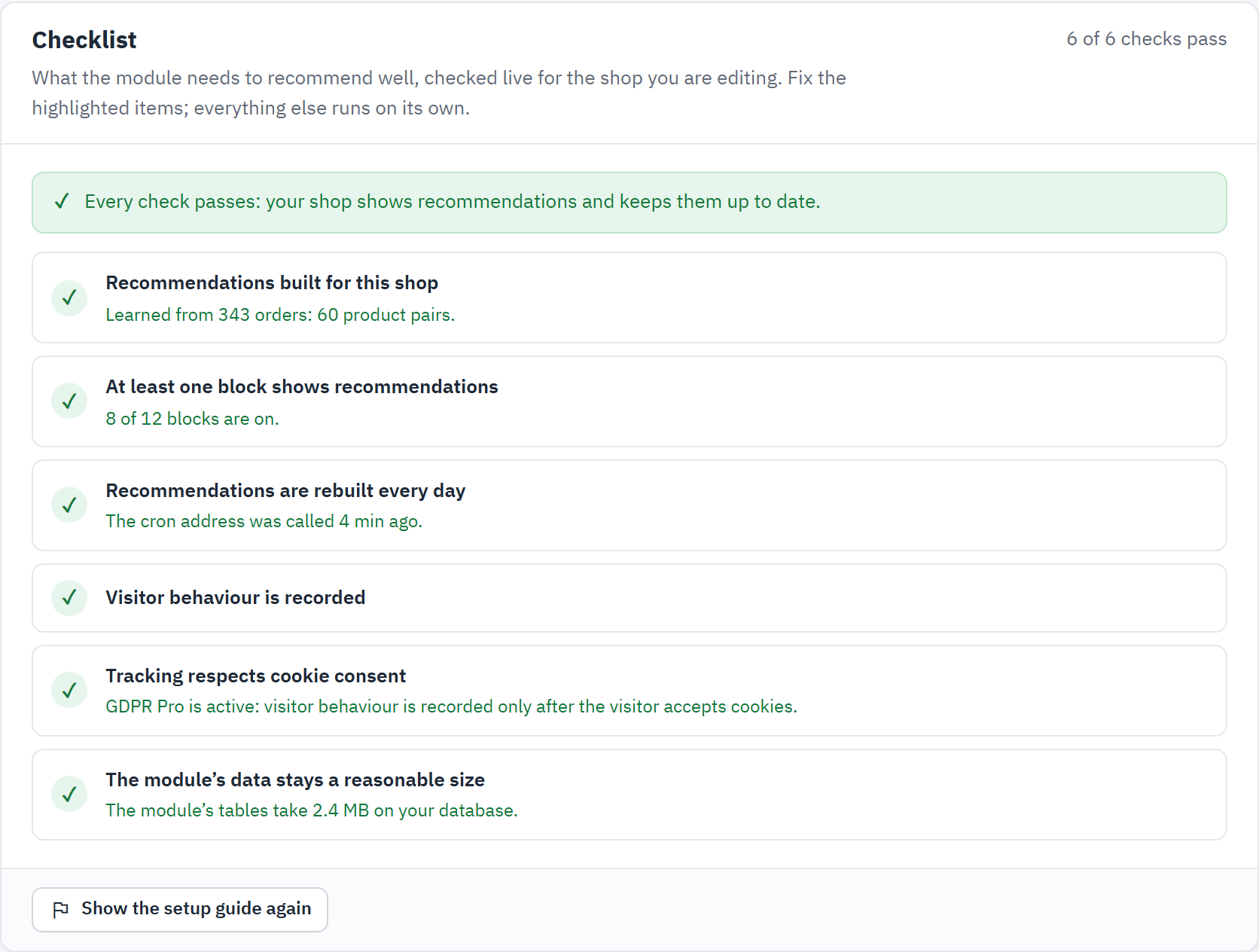
- How many checks pass.
- A check that passes, with what it found: here the orders read and the product pairs found.
- The daily rebuild: by the automatic rebuild, or by your cron job.
- Cookie consent: shown when a consent module is active.
- Show the setup guide again reopens Get started.
A check that fails or warns says why, with a Fix button that opens the place to change it. The checks:
| Check | When it warns, what to do |
|---|---|
| Recommendations built for this shop | Not built yet, or the last build failed: click Rebuild recommendations. No products in common in the orders yet: the blocks use similar and popular products meanwhile; a longer Order history in Engine may help. |
| At least one block shows recommendations | Every block is off: switch one on in Blocks. |
| Recommendations are rebuilt every day | The automatic rebuild is off, or your server cannot finish the page before rebuilding: set up the cron job of Engine (section 15.2). |
| Visitor behaviour is recorded | Tracking is off: “viewed together”, trending, recently viewed and personal picks then use your orders only. |
| Tracking respects cookie consent | Shown with a consent module. It warns when behaviour is recorded before consent, or when a consent tool other than GDPR Pro needs its one line of script (section 17.2). |
| Personal picks work with your page cache | Shown with a page cache module: switch on Load the blocks after the page in Engine, so a cached page never shows one visitor’s picks to another. |
| No other module shows the same kind of block | Other modules show product blocks on the same pages, so customers see two similar lists. Hide theirs on these pages hides them in this shop (you can undo it), or switch your block off. |
| The Python service is set up | Shown when the service is switched on: its address, its key or its last training has a problem (section 15.4). |
| Recommendation blocks are shown | Shown when Show recommendation blocks is off in Engine: no block shows in the shop. |