

















Installation and upgrade
Install the module from its zip file in the Module Manager. It reads your past orders at once and opens on a short setup guide. No block shows on your shop until you switch it on.
Install the module
- In the back office, open Modules › Module Manager.
- Click Upload a module and drop the module’s zip file, whose name starts with
psairec(do not unzip it). - When PrestaShop says the module is installed, click Configure.
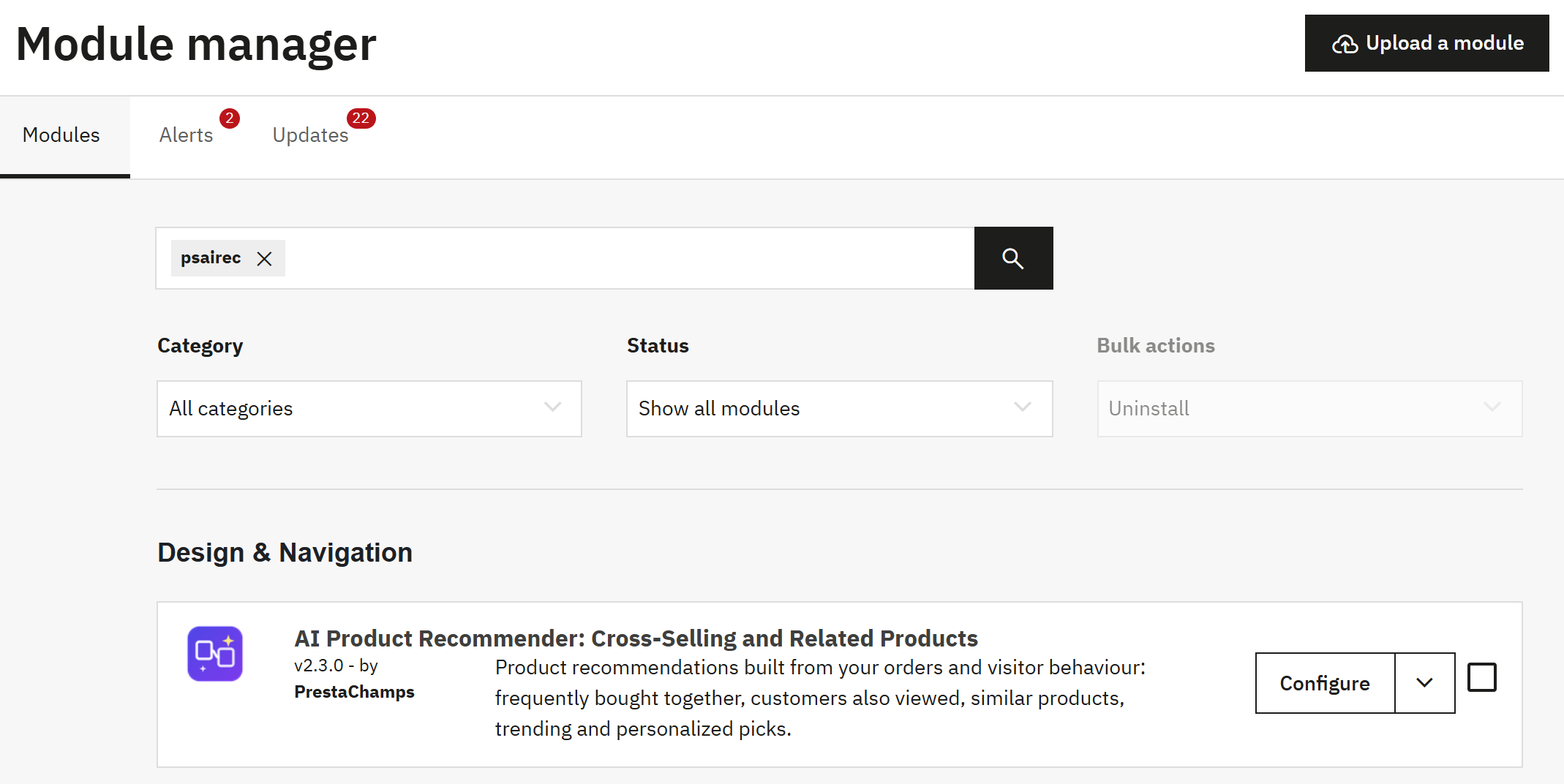
- Upload a module: drop the zip file here.
- Configure opens the module’s page.
During the installation the module creates its tables, registers its places in your theme, writes the block titles in every language of your shop and builds the recommendations from the orders you already have. The page then opens on Get started. Later, open it from Catalog › Product recommendations or with Configure in the Module Manager.
Upgrade from version 1
Upload the zip of version 2 in the Module Manager, over the installed version 1 (1.0.0 to 1.2.3), and click Upgrade if PrestaShop asks. Version 2 is a rebuild of the module:
- Kept: your blocks with their titles, strategies and number of products, your style presets (they become styles), your main settings and the visitor history recorded so far.
- Replaced: the ten settings pages of version 1 make way for one page, Product recommendations, in the Catalog menu. It opens on the setup guide: follow it, or click Skip the guide, I know my way.
- To do again: the daily update. Copy the new cron line from Engine (section 15.2), or let the automatic rebuild do it: the old cron scripts no longer exist.
- If you used the personalisation server of version 1, install the new Python service and enter its address and key again (section 15.4).
- Check Visitor tracking: recording is on by default and waits for the visitor’s cookie consent when GDPR Pro is active.
- If your theme overrides the module’s templates, compare them with the new block template.
Module Manager actions and your data
| Action | What happens |
|---|---|
| Configure | Opens Catalog › Product recommendations. |
| Disable | No block shows and nothing is recorded; everything is kept for when you enable it again. To pause only the blocks, switch off Show recommendation blocks in Engine instead: the engine keeps learning. |
| Reset | Uninstalls and installs again: every setting, rule, style, test, statistic and recorded visit of the module is deleted, then the recommendations are built again from your orders. |
| Uninstall | Deletes the module’s tables and settings: recorded visits, statistics, rules, styles and tests. Your orders, products and customers are PrestaShop’s and are never touched. |
Quick start: the four steps of Get started
The first time you open Catalog › Product recommendations, the page opens on Get started. Four short steps build the recommendations, choose where they appear, keep them up to date and show them in your theme. Your progress is kept: you can stop at any step and come back later.
Step 1: Learn from your shop
The engine reads the valid orders of the last 365 days and the product views recorded on your shop, and finds the products that go together. No personal data leaves your shop.
- Click Build now. On most shops it takes a few seconds.
- Read the result: how many orders and visitors were read and how many product pairs were found.
- Click Next.

- The four steps. A step done has a tick; a skipped step stays marked until you do it.
- Build now reads your orders and visits and builds the recommendations.
- What the build found: orders and visitors read, product pairs found.
- Next goes to the next step.
- Skip for now leaves the step for later.
- Skip the guide, I know my way closes the guide and opens the dashboard.
Step 2: Choose where recommendations appear
Each part of your shop has a small picture with the places where a block can show. The places marked Recommended are ticked for a new shop: the middle of the home page, under the product details, the add-to-cart pop-up, the cart and the order confirmation. Each place says which products it shows.
- Tick the places you want, untick the others.
- Click Save and continue (or Save to stay on the step).
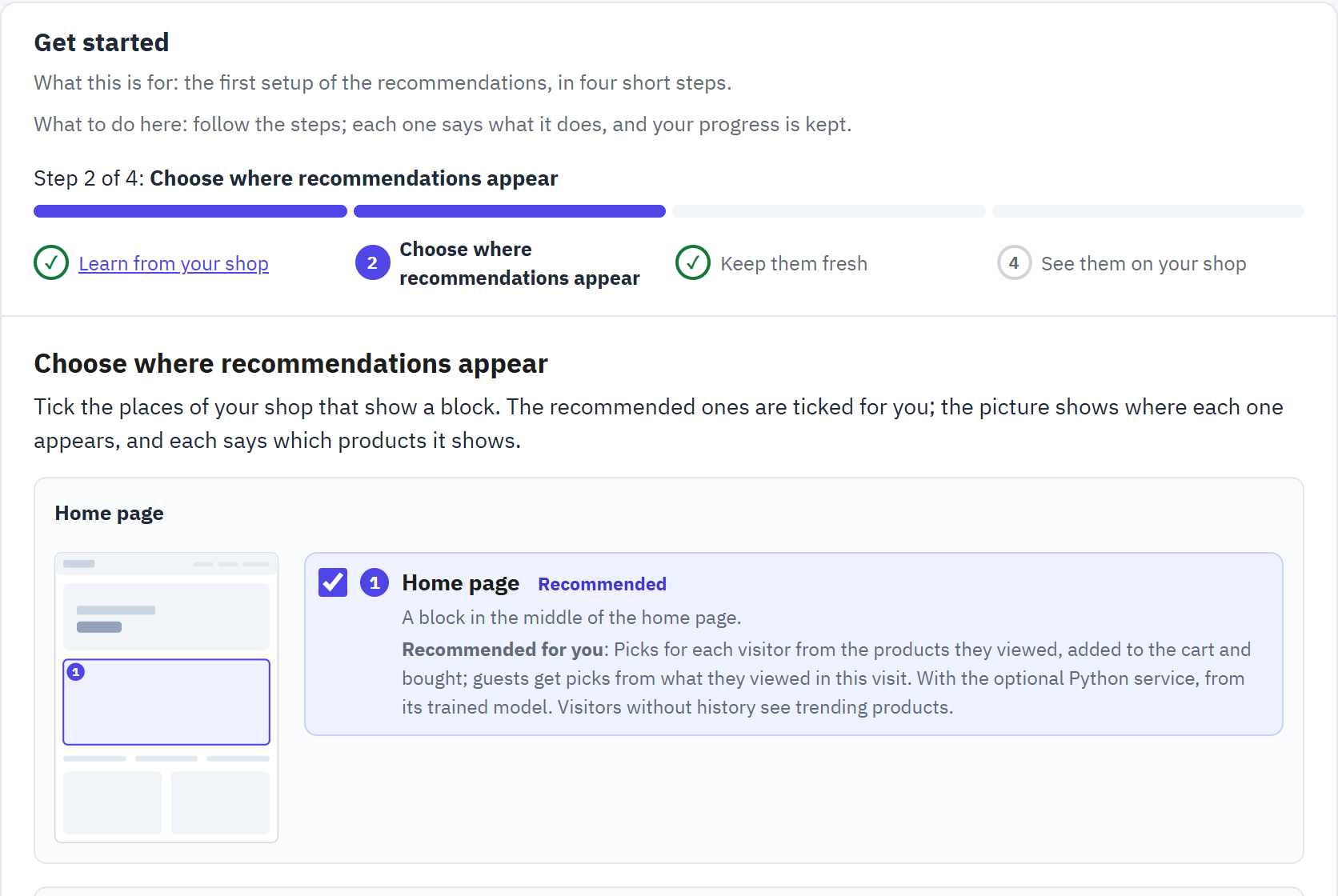
- Where the block shows on the page; the number matches the place in the list.
- Tick a place to show a block there.
- Recommended: a good place to start with.
Every choice can be changed later in Blocks (chapter 6).
Step 3: Keep them fresh
The recommendations are rebuilt once a day. By default the module does it by itself, right after a visitor’s page has been sent, so no cron job is needed. This step says whether that works on your server.
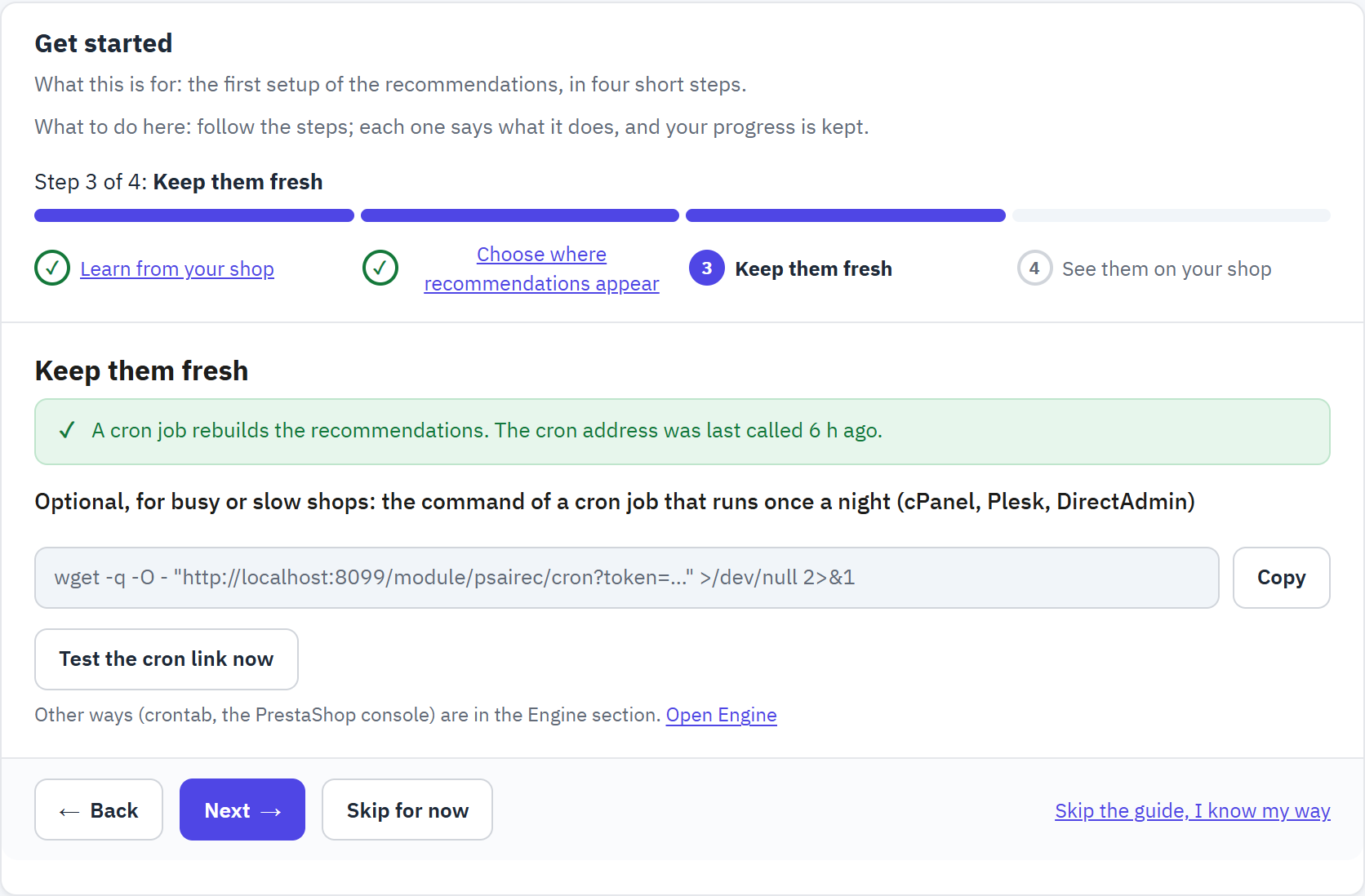
- Whether the daily rebuild works on your server, and how.
- Optional: the command of a cron job to paste in your hosting panel (cPanel, Plesk, DirectAdmin). Copy copies it.
- Test the cron link now calls the address once and says whether it answers.
A cron job is recommended for busy or slow shops: it rebuilds at night, so no visitor ever waits. The other ways (a crontab line, the PrestaShop console) are in Engine (section 15.2).
Step 4: See them on your shop
Each block you switched on, as your customers see it in your theme. Choose a block in the tabs and a screen size; these previews are not counted in the statistics. Open my shop opens your storefront in a new tab. Click Finish to close the guide.
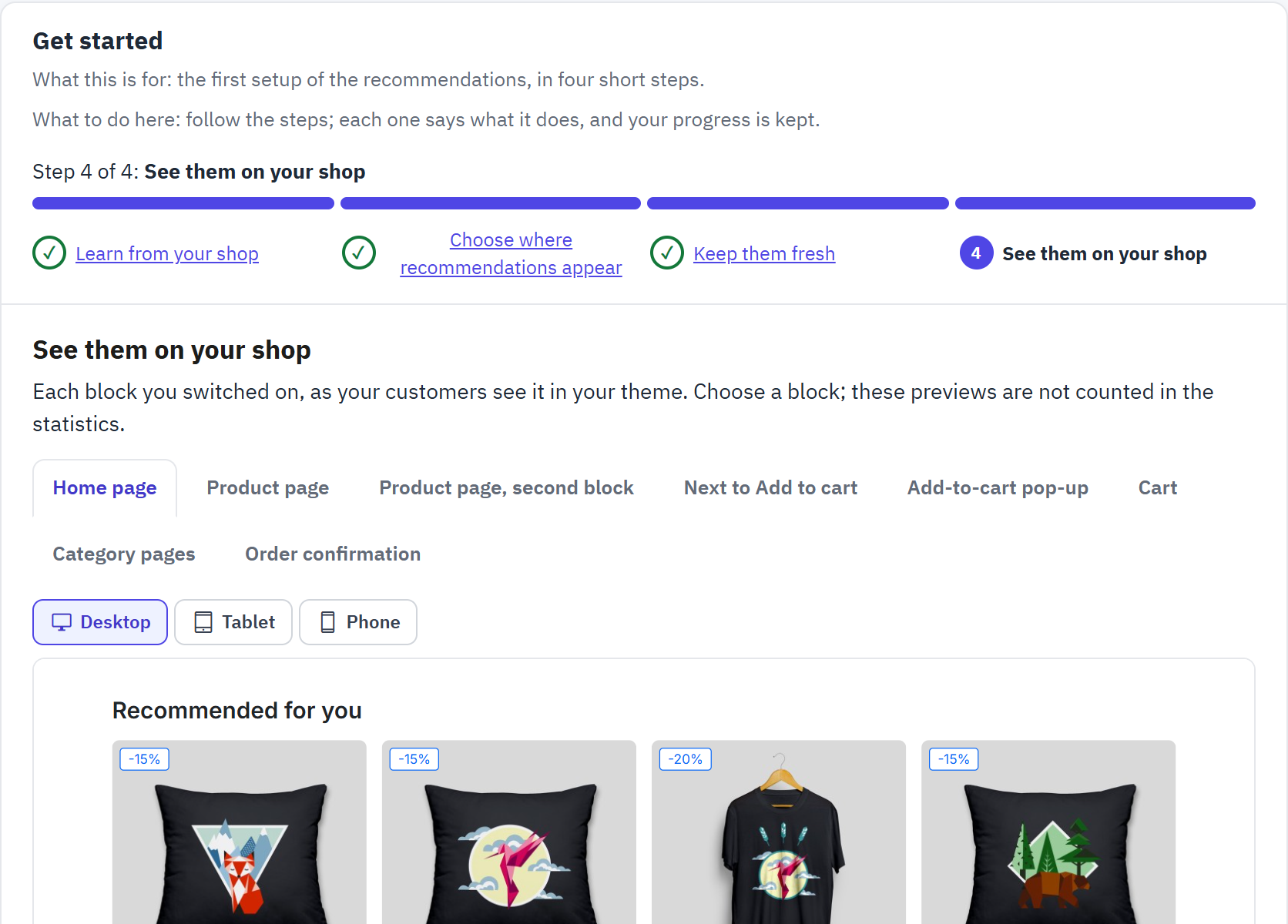
- One tab per block you switched on.
- Desktop, Tablet or Phone width.
- The block as your theme shows it.
Skipped steps and starting again
- A step left with Skip for now stays marked in the step bar, and the dashboard reminds you of it until you do it.
- Skip the guide, I know my way closes the guide at any step.
- Once the guide is finished, Get started offers Open the dashboard, Fine-tune the blocks and Start the guide again. Checklist has Show the setup guide again too.