
















The eleven strategies
A strategy decides which products a block shows. Five work on the product page, three follow the visitor or the customer, three are the same for everyone. The texts below are those of the i buttons of the module.
For a product page
Frequently bought together
What others bought with this product
- Shows: Products that appear in the same orders as the product shown. Needs a product page.
- Example: On a coffee machine, the descaler and cups other customers ordered with it.
- Works best on: Product page, add-to-cart pop-up.
- Needs: Orders with two or more products. With few orders it finds few products, and the block is completed with similar ones.
Customers who viewed this also viewed
What others looked at with this product
- Shows: Products viewed by the same visitors as the product shown. Needs a product page.
- Example: On a blue dress, the other dresses visitors compared it with.
- Works best on: Product page, as a second block.
- Needs: Recorded visits: it improves as visitors browse. A new shop gets similar products instead.
Similar products
Alternatives to this product
- Shows: Products of the same category with the same brand, shared features or a close price. Needs a product page.
- Example: On a leather sofa, other sofas of the same category, brand or price.
- Works best on: Product page, products out of stock.
- Needs: Nothing but your catalogue: works from the first day.
Premium alternatives
A better, pricier version
- Shows: Similar products of the same category that cost more than the product shown, to suggest an upgrade. Needs a product page.
- Example: On a 50 € drill, the 80 € to 120 € drills of the same category.
- Works best on: Product page.
- Needs: Products of the same category that cost more. The most expensive products get none.
Complete your purchase
Add-ons for what is in the cart
- Shows: Products often bought with the products in the cart. Needs a cart; in the add-to-cart pop-up, the product just added counts as the cart.
- Example: With a printer in the cart, the ink and paper bought with it.
- Works best on: Cart page, add-to-cart pop-up.
- Needs: A cart and orders with two or more products; otherwise popular products fill it.
For each visitor
Recommended for you
Personal picks for each visitor
- Shows: Picks for each visitor from the products they viewed, added to the cart and bought; guests get picks from what they viewed in this visit. With the optional Python service, from its trained model. Visitors without history see trending products.
- Example: A visitor who looked at running shoes sees other running gear.
- Works best on: Home page, category pages, order confirmation.
- Needs: Visitors who viewed, added or bought products. A first-time visitor sees what is popular.
Recently viewed
What this visitor looked at before
- Shows: The products this visitor viewed last, newest first. Empty on a first visit.
- Example: The three jackets a visitor opened before coming back to the home page.
- Works best on: Home page, cart page, page not found.
- Needs: A returning visitor: empty on a first visit.
Buy it again
What this customer bought before
- Shows: The products this customer bought before, the most often bought first, so regular customers re-order in one click. Needs a logged-in customer; other visitors see what completes the block.
- Example: An electrician who orders the same breakers every month finds them on the home page.
- Works best on: Customer account pages, home page, cart page.
- Needs: A logged-in customer with orders; other visitors see personal picks or popular products instead.
In the block’s settings, the card of this strategy says how many of your returning customers bought a product again, for example “41 % of your returning customers bought a product again (based on 240 customers)”. When few customers buy again, another strategy suits the block better. It is not offered for the order confirmation, where it would show the products just bought, nor for Next to Add to cart, which is part of the page a page cache may show to other customers. With a page cache module, switch on Load the blocks after the page in Engine.
The same for everyone
Trending now
Popular right now
- Shows: Products with the most views, cart additions and orders in the last weeks; recent activity counts more.
- Example: The products most viewed, added and bought over the last two weeks.
- Works best on: Home page, category pages, page not found.
- Needs: Some recent visits or orders; works for every visitor.
Best sellers
Your best sellers
- Shows: The products sold most within the order history period of the Engine settings.
- Example: The ten products you sold most this year.
- Works best on: Home page, category pages.
- Needs: Orders; works for every visitor.
New arrivals
Your newest products
- Shows: The products added to the catalogue most recently.
- Example: The products you added to the catalogue last week.
- Works best on: Home page, category pages.
- Needs: Nothing: always has products.
Never an empty block
When a strategy finds fewer products than the block shows, for example on a new product without orders, the block completes itself: with the related strategies first (viewed together, then similar products), then trending products, best sellers and new arrivals. Complete the block with in the block’s settings chooses another filling, or none (section 6.3). The Explorer shows what each strategy finds for any product (section 14.1).
Styles: how the blocks look
A style decides how the product cards of a block look. By default every block uses Theme cards: your theme’s own product cards, so the blocks look like your category pages. The other styles use the module’s cards, with your colours, sizes and effects. Open Your shop › Styles.
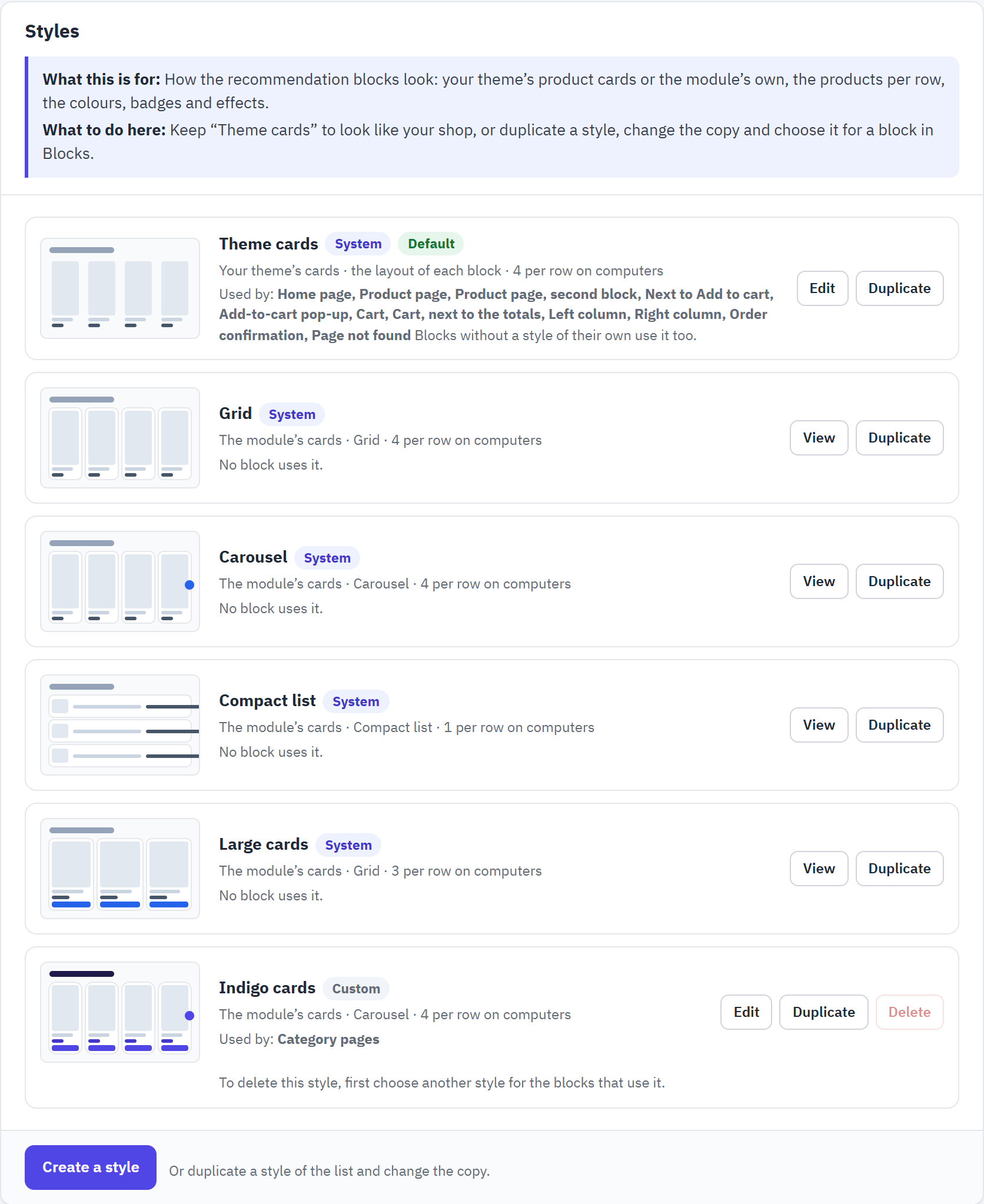
- Theme cards, the default: your theme’s cards. Edit changes what applies to them; Duplicate makes a copy.
- A style of your own, here “Indigo cards”, with the blocks that use it.
- Create a style starts a new style from scratch.
The system styles
| Style | What it is |
|---|---|
| Theme cards | Your theme’s product cards; the layout of each block; 4 per row on computers. Here you change the title alignment, the products per row, the Add to cart button and the custom CSS added to every block. |
| Grid | The module’s cards in rows, 4 per row on computers. |
| Carousel | The module’s cards in one scrolling row. |
| Compact list | Small image, name and price, one product per row: for narrow places. |
| Large cards | The module’s cards, 3 per row, larger pictures, short description and an Add to cart button. |
System styles cannot be changed (only Theme cards has a few settings): click View to look at one, Duplicate to make a copy you can change, then choose the copy for a block in Blocks (Edit › How it looks › Style).
Change a style
Click Edit on a style of your own. The preview at the top shows every change at once, with sample products; your shop changes when you save.

- Live preview: a sketch with sample products. The real block shows your products, with your theme’s fonts and prices.
- The preview at Desktop, Tablet or Phone width.
- The options, in five tabs.
- Product cards: your theme’s cards or the module’s cards.
| Tab | What you set there |
|---|---|
| Look | Name (only you see it), Product cards, Layout, Title alignment, products per row on computers, tablets and phones, Show an Add to cart button. |
| What cards show | With the module’s cards: price, discount and “new” badges, short description, rating, wishlist and quick view, image size. |
| Colours and effects | Colours of the buttons, badges, background, titles and prices; rounded corners; an effect when the mouse is over a card; an animation when the block appears; title and price sizes. |
| Carousel | Arrows, dots, automatic scrolling and its speed (it pauses on hover, and never runs for visitors who asked their device for less motion). |
| Custom CSS | Your own CSS rules for the blocks of this style. |
The Add to cart button of a card adds the product with your theme’s own pop-up. Products with combinations or a required customization get a “Choose options” link to their page instead.
Rules and exclusions
The engine learns from your data, but you know your products better. Your shop › Rules leaves products out of every block, and adds merchant rules on top of what the engine chose: a product to show first, the accessories of a category, two products that never go together.
What is never recommended
The choices at the top of the section apply to every block, and to the blocks placed in your theme’s templates. Inactive products and products hidden from the catalogue are always left out.

- Hide products that cannot be ordered: products that are out of stock and cannot be ordered never appear in a block. Products that may be ordered when out of stock stay. Default: on.
- Hide products the customer already bought: a logged-in customer does not see what they already ordered, except in a “Buy it again” block. If your products are bought again and again, such as consumables, add a block with the “Buy it again” strategy (section 8.2). Default: on.
- Never recommend these categories: search a category by name, or click Browse and pick it in the tree. Its subcategories are not included.
Under them, Never recommend these products: search a product by its name, reference or EAN and pick it in the list; the cross takes it off. These products never appear in a recommendation; their own product page still shows recommendations. Click Save when you are done.
Merchant rules
Merchant rules apply to every block, after the engine has chosen its products. Each rule says in one sentence what it does and where; it can be switched off and kept for later.
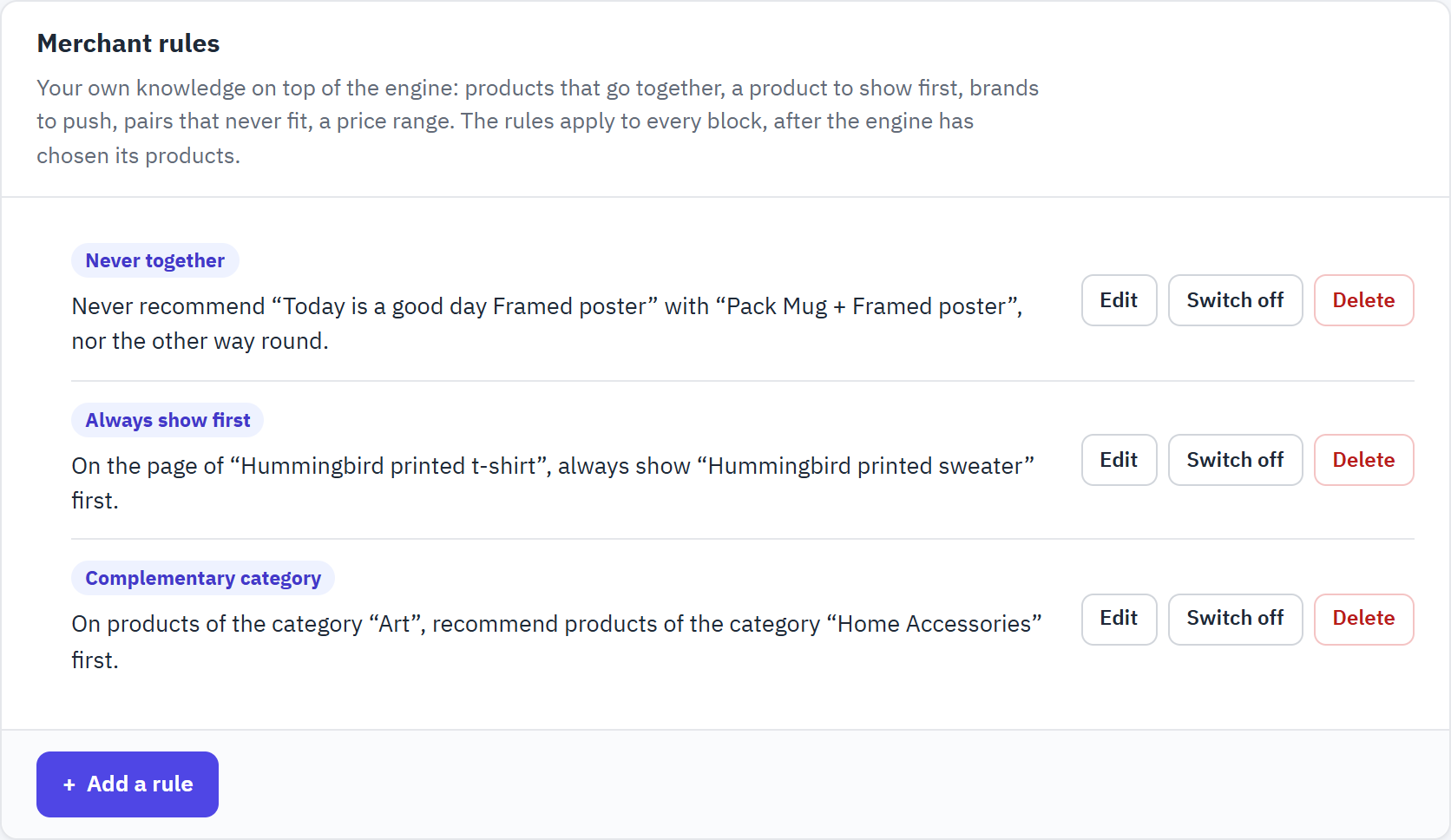
- Never together: the pack “Mug + Framed poster” and the poster it already contains are never recommended with each other.
- Always show first: on the t-shirt’s page, the matching sweater always comes first.
- Complementary category: on the posters of the category “Art”, the products of “Home Accessories” are recommended first.
- Add a rule opens an empty rule in the side panel.
| Kind of rule | What it does |
|---|---|
| Complementary category | Recommends the products of another category first, or only them with Only this category: for example frames and boxes on the pages of switches, or the accessories of a category. |
| Always show first | Puts one product at the front of the recommendations, on every page or only where you choose, for example a bestselling accessory. |
| Rank higher or lower | Moves the products of a category, of a brand or one product up (weight above 1) or down (weight below 1), from 0.1 to 10. |
| Never together | Two products that are never recommended with each other, for example a phone and a case that does not fit it. A category or a brand can also be kept away from a product. |
| Price range | Recommends only products whose price is within a range of the price of the product shown, for example from 50 % to 150 %. |
Add or change a rule
- Click Add a rule, or Edit on a rule of the list.
- Choose the Kind of rule. The fields below change with it.
- Choose where it applies in Applies on: Every page (all products), Products of a category, One product or Products of a brand, and pick the category, product or brand.
- Choose what it recommends (or keeps away), and click Save. The rule applies from the next page view.
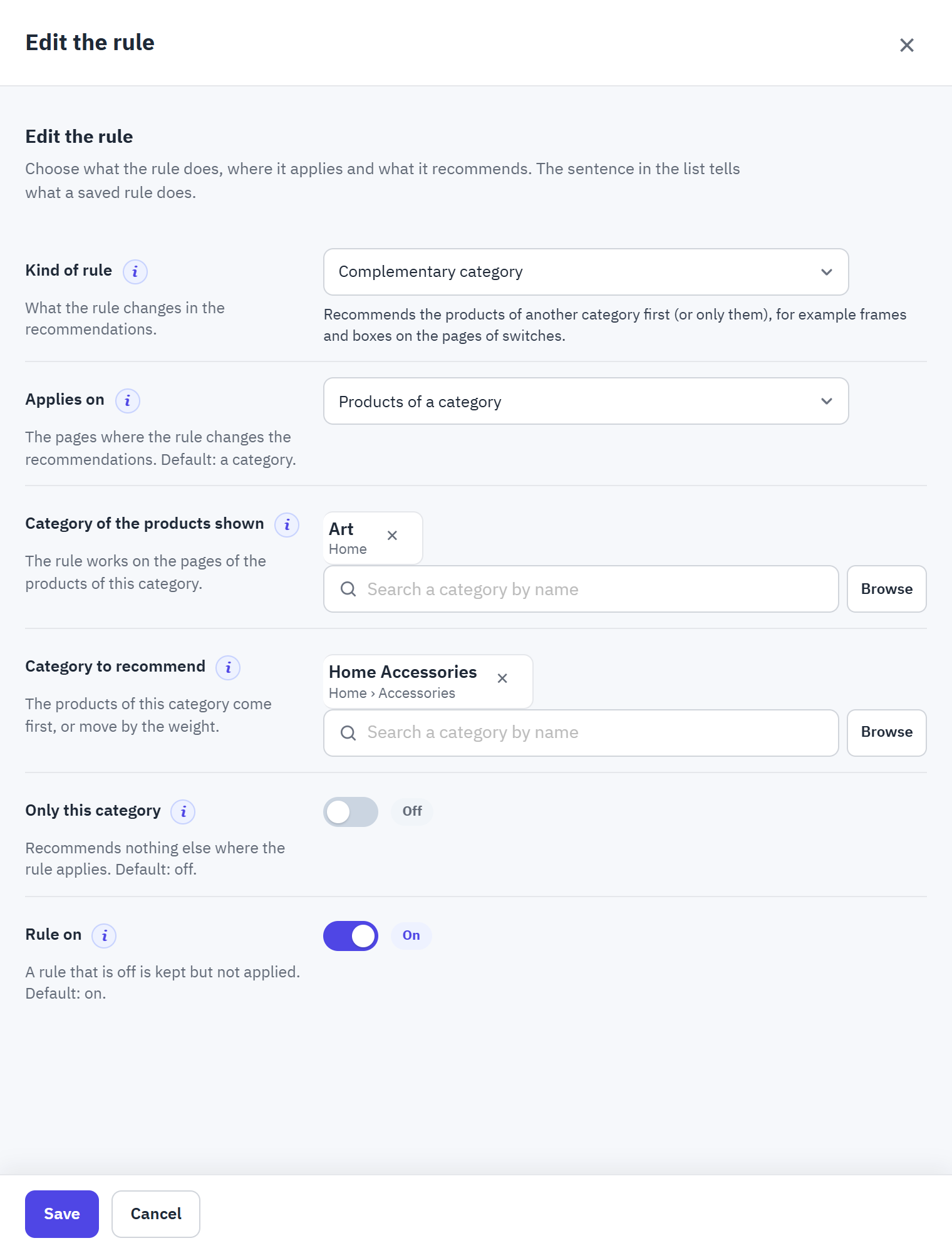
- Kind of rule, with the description of the chosen kind under it.
- Applies on and the category, product or brand whose pages the rule changes.
- What the rule recommends: here the Category to recommend, and Only this category to recommend nothing else.
- Rule on: a rule that is off is kept but not applied.
In the list, Switch off keeps a rule without applying it, and Delete removes it. Hide this pair in Insights › Product pairs also adds a Never together rule (section 14.2).