
















The module’s page and the Dashboard
Everything of the module is on one page, Catalog › Product recommendations. Once the setup guide is finished, it opens on the Dashboard, which answers three questions: do the recommendations work, where do they show, and what do they bring.
The page at a glance
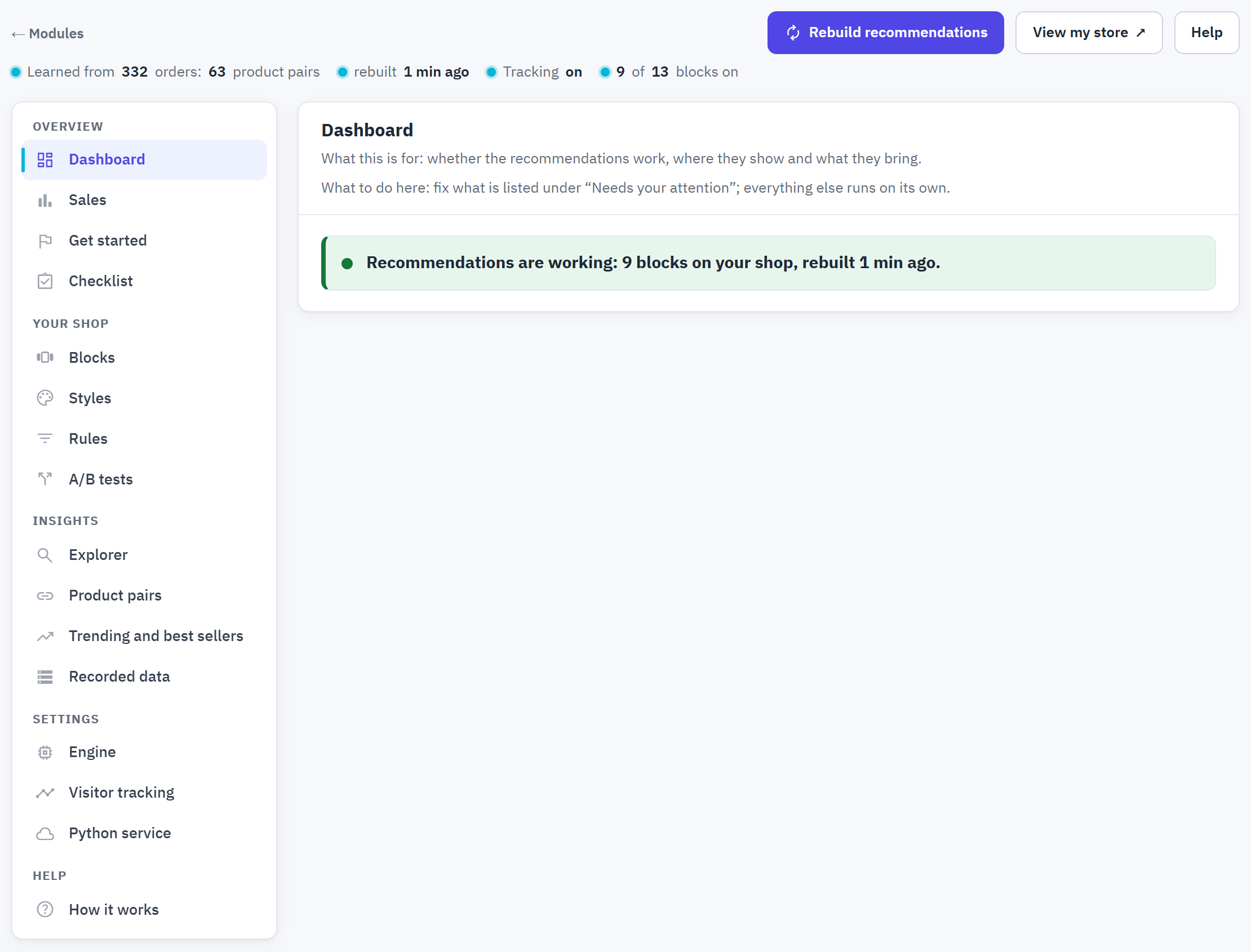
- The status line: how many orders the engine learned from and the product pairs it found, when it last rebuilt, whether tracking is on, and how many blocks are on.
- Rebuild recommendations learns again from your orders and visits, for the shop you are editing.
- View my store opens your storefront in a new tab.
- Help opens How it works.
- The sections, in four groups: Overview, Your shop, Insights, Settings, and the help.
- Every section starts with two lines: what it is for, and what to do there.
A few things work the same everywhere on the page:
- Every setting has a one-line description under its label; the i button next to it explains more.
- Edit, View, New test and Add a rule open a side panel over the page. Save or cancel there; the list behind it stays where it was.
- Advanced opens the expert settings of a group. The defaults suit most shops.
- On a multistore, choose the shop in PrestaShop’s shop selector first: the settings, figures and styles are those of that shop (chapter 16).
The Dashboard
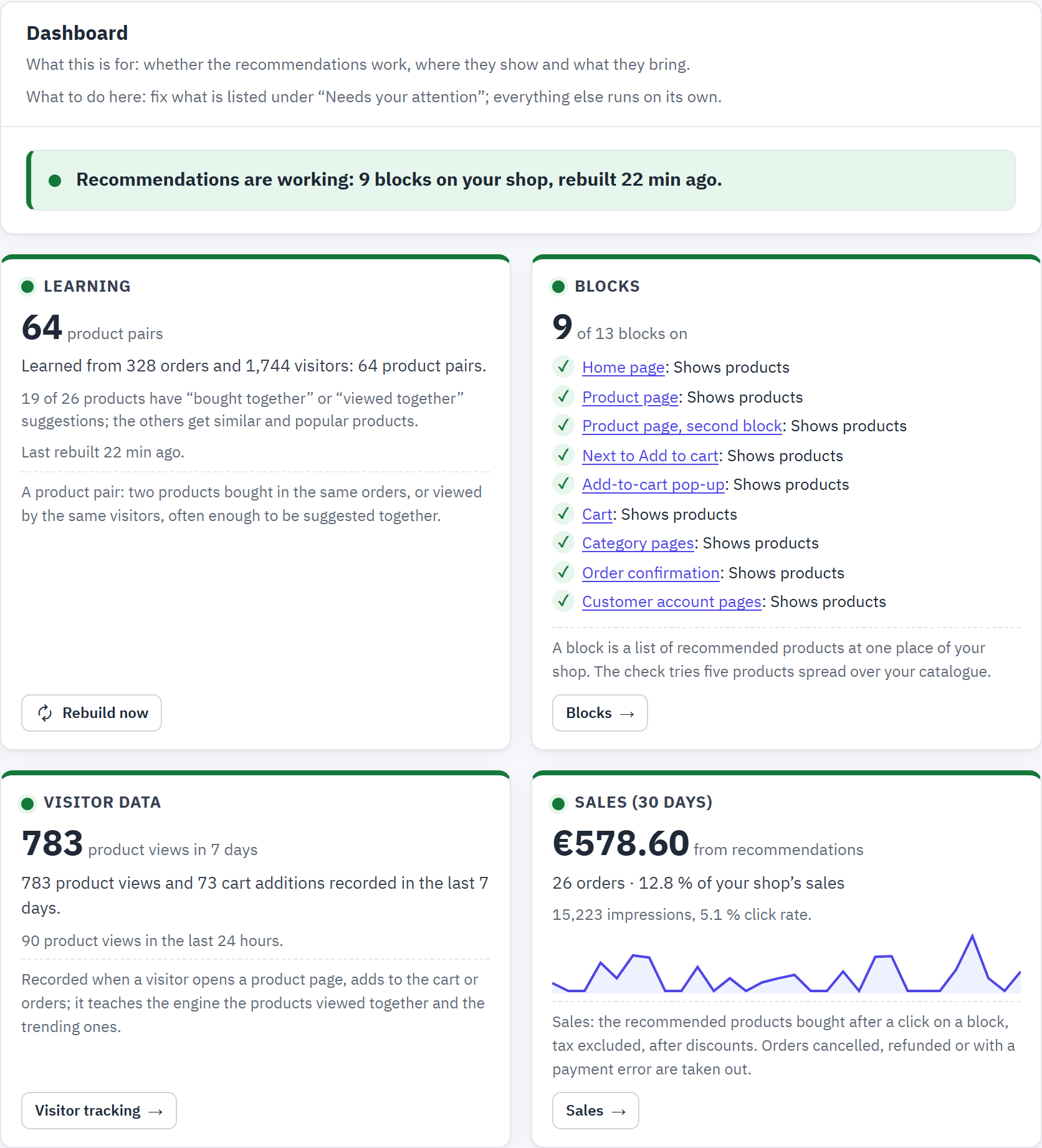
- The sentence says whether the recommendations work, for example “Recommendations are working: 8 blocks on your shop, rebuilt 5 min ago.”, or names the first problem, with a Fix button.
- Learning: the orders and visitors the engine learned from, the product pairs it found and how many of your products have their own suggestions. Rebuild now learns again.
- Blocks: how many blocks are on and whether each one shows products. The check tries five products spread over your catalogue.
- Visitor data: product views and cart additions of the last 7 days, and of the last 24 hours. When nothing was recorded, it says why.
- Sales (30 days): the sales from recommendations (the recommended products bought after a click, after discounts), the orders and the share of your shop’s sales, with a small curve of the sales per day. Its Sales button opens the Sales page.
Each tile has a button to the section where you change what it shows: Blocks, Visitor tracking, Sales.
Where it is active
A sketch of your shop’s pages, with each block at its place: home page, product page, cart and pop-up, category page, and the page after the order. Other pages (the customer account and the “page not found” page) are listed under it.
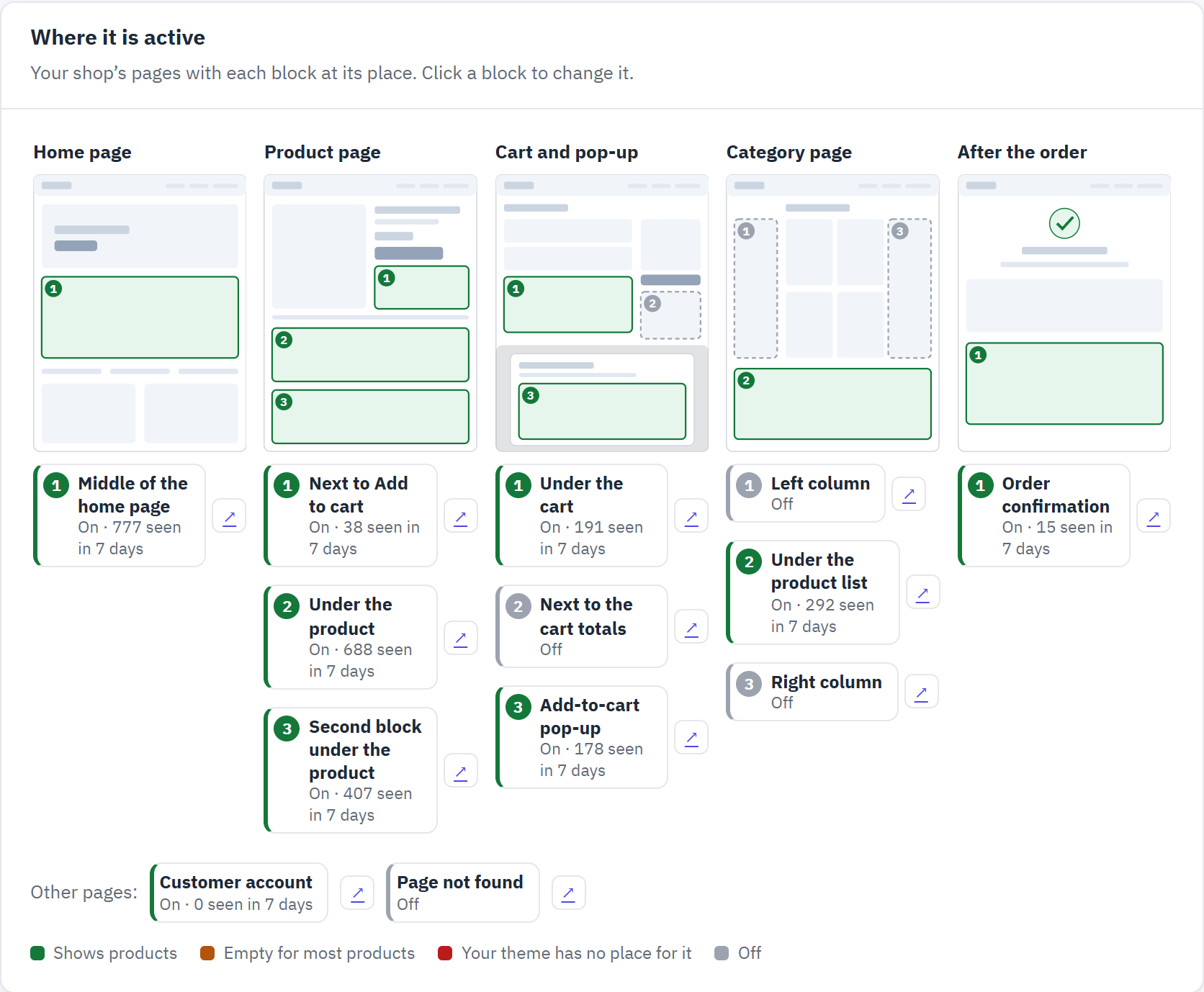
- A page of your shop, with numbered places.
- A block: its place, whether it is on, and how often visitors saw it in the last 7 days. Click it to edit the block.
- The arrow opens the block on your shop (“See it on my shop”), or its preview for the cart and order blocks.
- A block that is off.
- The colours: shows products, empty for most products, your theme has no place for it, off.
Needs your attention, and How it works
Needs your attention lists only the checks of Checklist that fail or warn, each with a Fix button that opens the place to change it. When all is well it says “Nothing needs your attention.” (section 13.1 explains every check.)
How it works shows the four steps from your shoppers’ visits to the results: shoppers browse and buy, every night the engine learns, the blocks show the best products, and you see the results. Each step links to the section where it is set up.
Blocks: where recommendations appear
A block is a list of recommended products at one place of your shop. There are thirteen places; each block has its own title, strategy, number of products, layout and style. Open Your shop › Blocks.
The thirteen places
| Block | Where it shows | Default settings |
|---|---|---|
| Home page | A block in the middle of the home page. | Suggested, “Recommended for you”, 8, grid |
| Product page | A block under the product details. | Suggested, “Frequently bought together”, 8, carousel |
| Product page, second block | A second block under the first one, for another strategy. | “Customers who viewed this also viewed” |
| Next to Add to cart | A compact block next to the Add to cart button. By default only when the product cannot be ordered, with available alternatives. | Suggested, “Similar products”, 4, list |
| Add-to-cart pop-up | A short list in the pop-up that opens when a product is added to the cart. | Suggested, “Complete your purchase”, 4, list |
| Cart | A block under the cart summary. | Suggested, “Complete your purchase”, 4, grid |
| Cart, next to the totals | A compact block in the side column of the cart page. | - |
| Category pages | A block under the product list of every category page. | “Trending now” |
| Left column, Right column | Compact blocks in the side columns, on the pages of your theme that have them (usually category pages). | “Trending now” |
| Order confirmation | On the page the customer sees right after ordering, to bring them back. | Suggested, “Recommended for you”, 4, grid |
| Customer account pages | At the bottom of My account, the order history and the order details, which only logged-in customers see: the products they bought before, to order them again. | “Buy it again”, 8, carousel |
| Page not found | On the “page not found” page, to lead lost visitors back to products. | “Trending now” |
After the installation every block is off: your shop looks the same until you switch blocks on, while the module already records product views, cart additions and orders. Step 2 of the setup guide ticks the suggested blocks for you.
A block appears where your theme prints its place. Two blocks of one page never show the same product.
The list of blocks
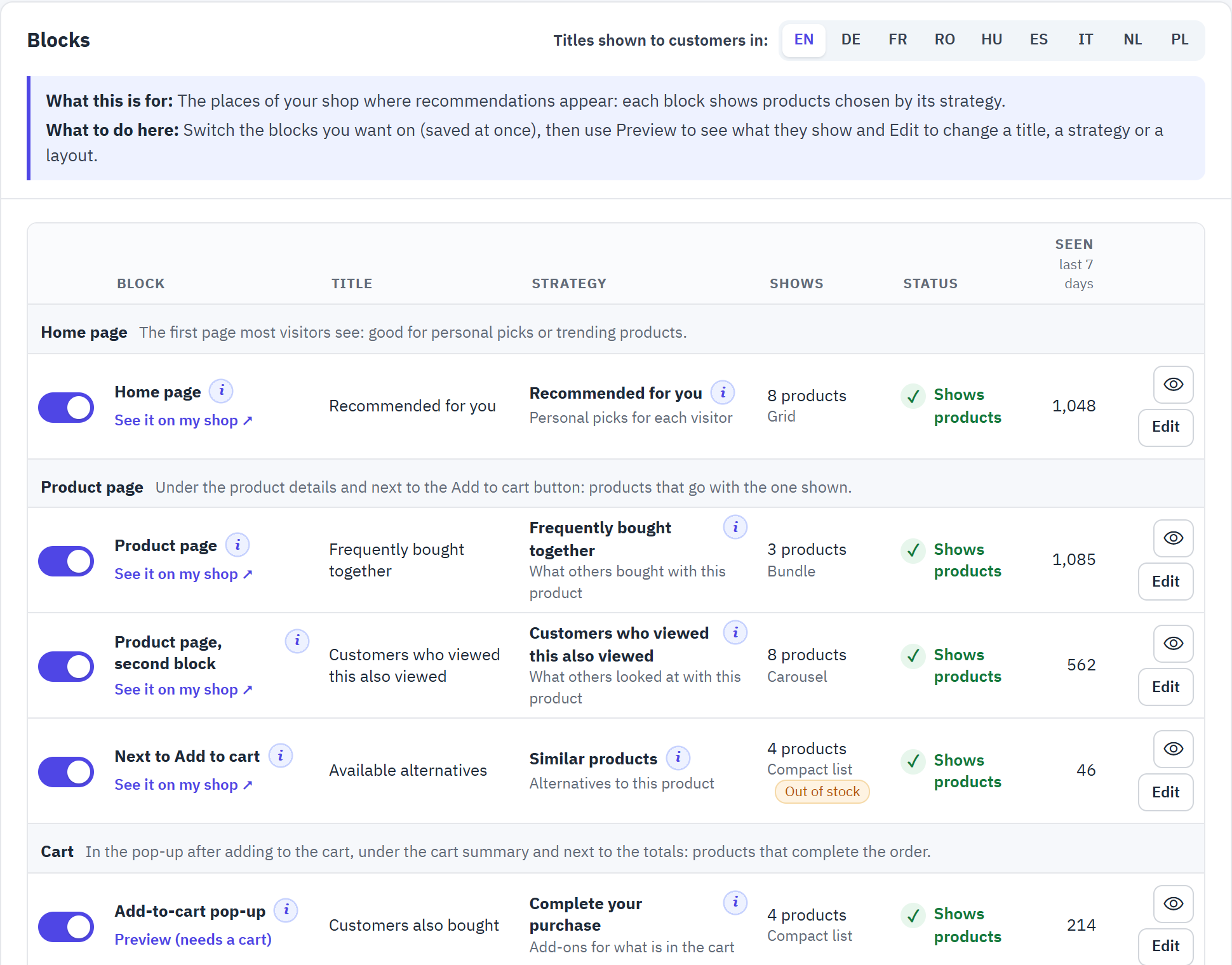
- The switch shows or hides the block. It is saved at once.
- Titles shown to customers in: switches the language of the titles in the list. A title still in English in another language is marked “Not translated”.
- The strategy of the block, with a one-line description; the i button gives an example, where it works best and what it needs.
- The status: Shows products, empty for most products, no place in your theme, or Off.
- How often visitors saw the block in the last 7 days.
- See it on my shop opens the page in a new tab and points at the block (section 6.7). The cart, pop-up and order blocks need a cart or an order: their link opens the preview instead.
- The eye opens the preview of the block in the side panel.
- Edit opens the block’s settings in the side panel.
Edit a block, with a live preview
Click Edit. The side panel shows the block at the top, as your shop would show it with the settings you have not saved yet, and the settings below.
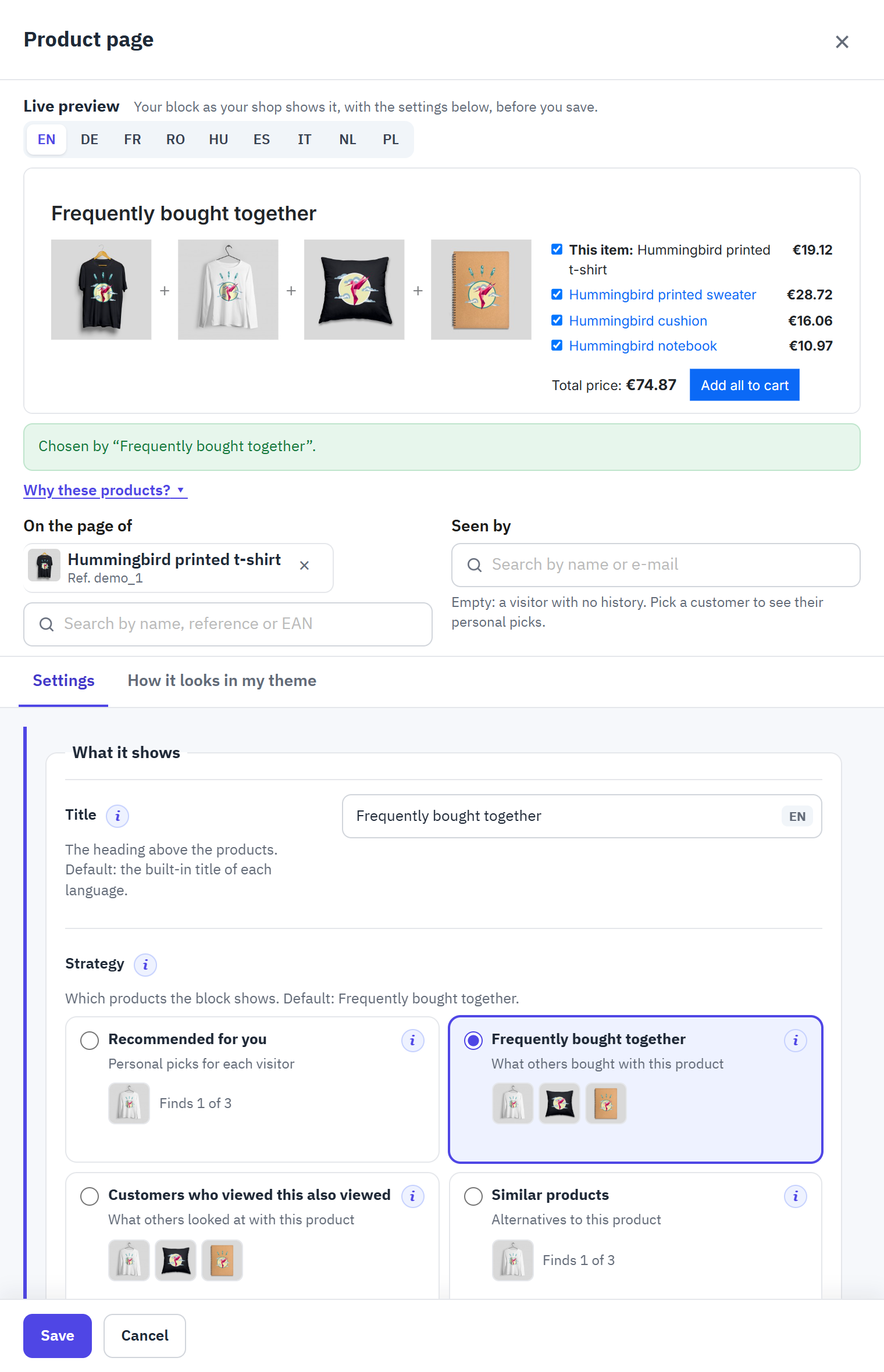
- Live preview: the block drawn by your theme, redrawn after every change.
- The language of the preview.
- Which strategy chose the products (or which fallback completed the block).
- Why these products? gives the reason for each product (figure 6.4).
- On the page of: the product the preview is for. It starts with your best seller; search another one by name, reference or EAN.
- Seen by: empty for a visitor without history, or pick a customer to see their personal picks.
- How it looks in my theme shows the block alone, on a computer, a tablet and a phone (section 6.6).
- The settings, in three groups (below).
| Group and setting | What it does |
|---|---|
| What it shows | |
| Title | The heading above the products, per language. Empty: the built-in title of each language. |
| Strategy | Which products the block shows (section 6.4 and chapter 8). |
| Number of products | How many products the block shows at most, from 1 to 24. |
| Only when the product is out of stock | Next to Add to cart only: shows the block only when the product cannot be ordered. Default: on. |
| How it looks | |
| Layout | Grid, Carousel (one scrolling row), Compact list (small image, name and price on one line each, for narrow places), and on the product page Bundle with checkboxes and “Add all to cart”: the product shown and up to three others with tick boxes, the total price and one button. |
| Style | How the product cards look: Theme cards (your theme’s own cards, the default) or another style (chapter 9). |
| When there are too few products | |
| Complete the block with | The usual fallbacks of the strategy (the related strategies first, then trending products, best sellers and new arrivals), Trending products, Best sellers, New arrivals, or Nothing: show fewer products. |
| Reuse the list for (Advanced) | How long this block reuses a computed list, in minutes. Empty: the shop’s setting in Engine. |
Click Save; Cancel closes the panel without changing anything. The block changes on your shop at the next page view.
The strategy chooser
Each strategy is a card with its name, a one-line description and the products it finds now for the product of the preview. Point at another card to see how many products would change if you picked it. A strategy that cannot work in this block, for example one that needs a cart on the product page, is greyed out with the reason.
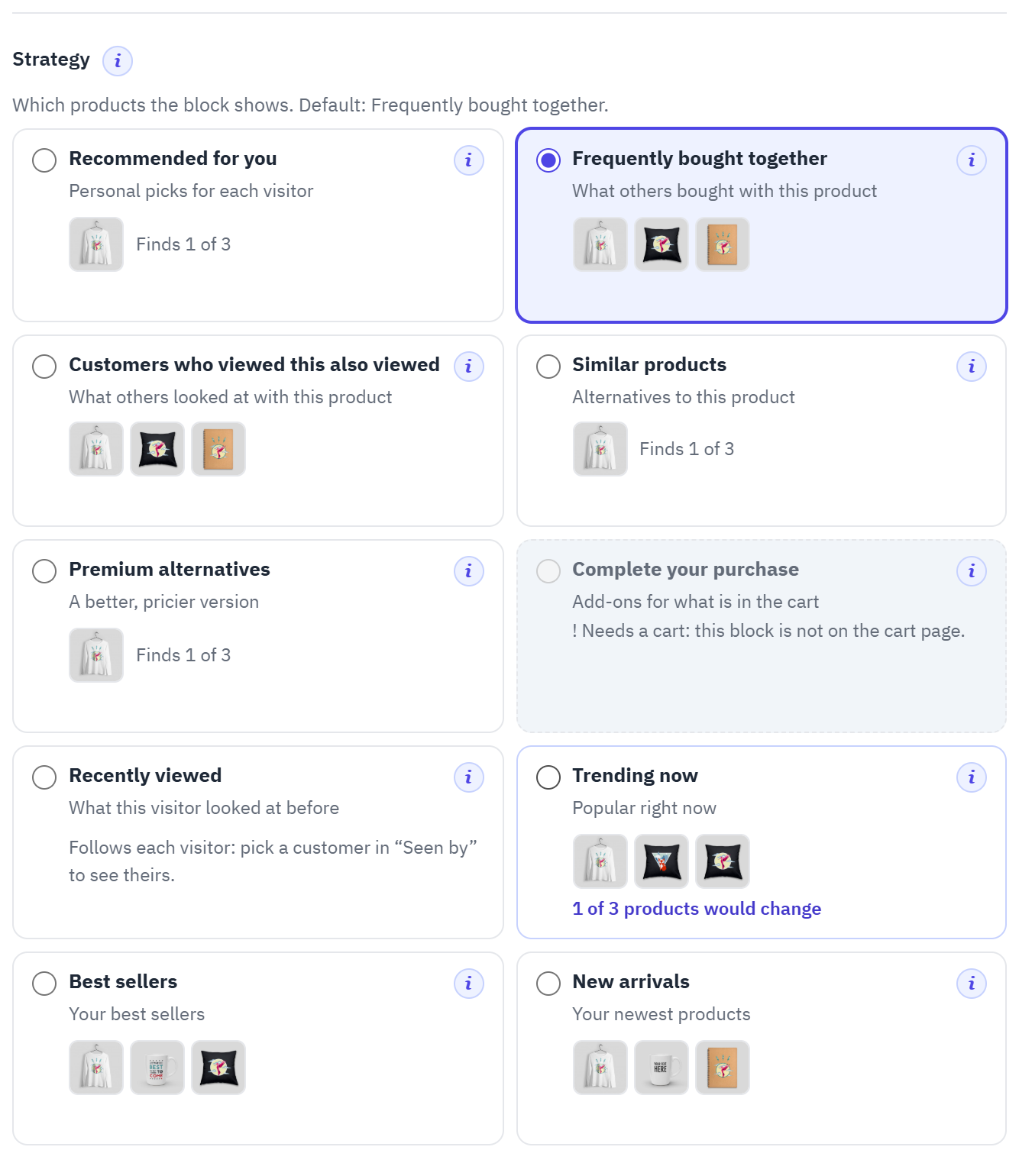
- The strategy chosen now, with the products it shows.
- “Finds 1 of 3”: the strategy finds fewer products than the block shows; the fallbacks complete it.
- Pointing at a card shows how many products would change.
- Greyed out: this strategy needs something the block does not have.
- The i button: an example, where the strategy works best and what it needs.
Why these products?
Under the live preview, Why these products? shows each product of the block with its reference, price, stock and the reason it was chosen: “Bought together in 26 orders”, “Pinned by a rule”, “Same brand, 1 shared feature”, or the fallback that completed the block.
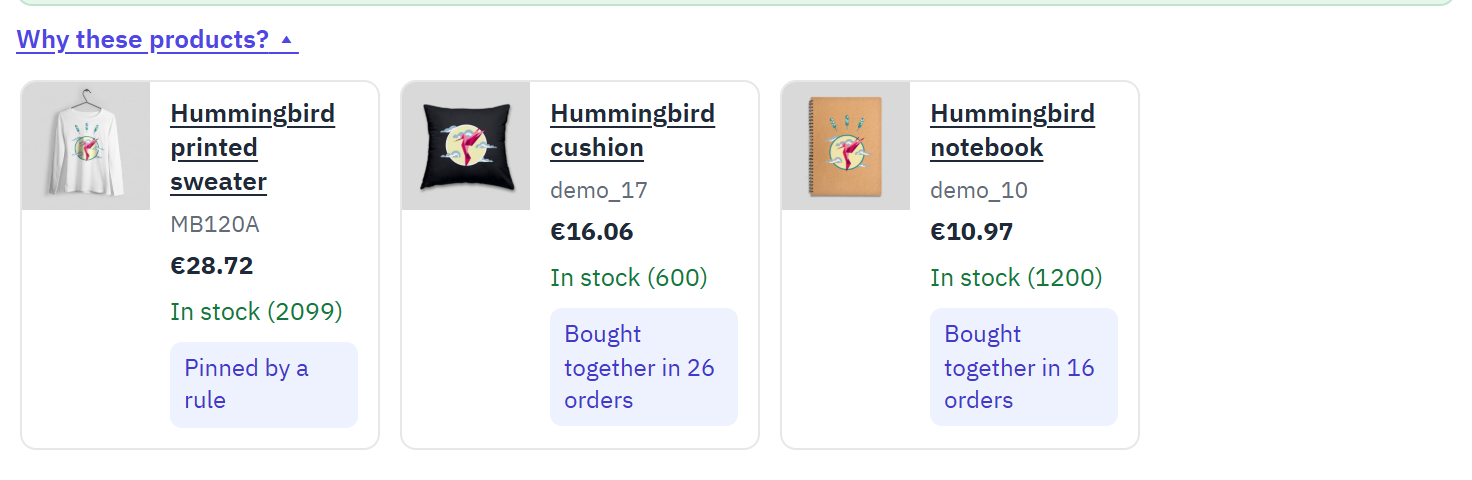
- Why these products? opens and closes the list.
- One card per product, with the reason in the coloured label.
How it looks in my theme
The second tab of the side panel shows the block alone in your shop’s theme, at computer, tablet and phone width, with the settings of the Settings tab, saved or not. It is the way to check the cart, pop-up and order confirmation blocks, which need a cart or an order on the storefront. These previews are not counted in the statistics.
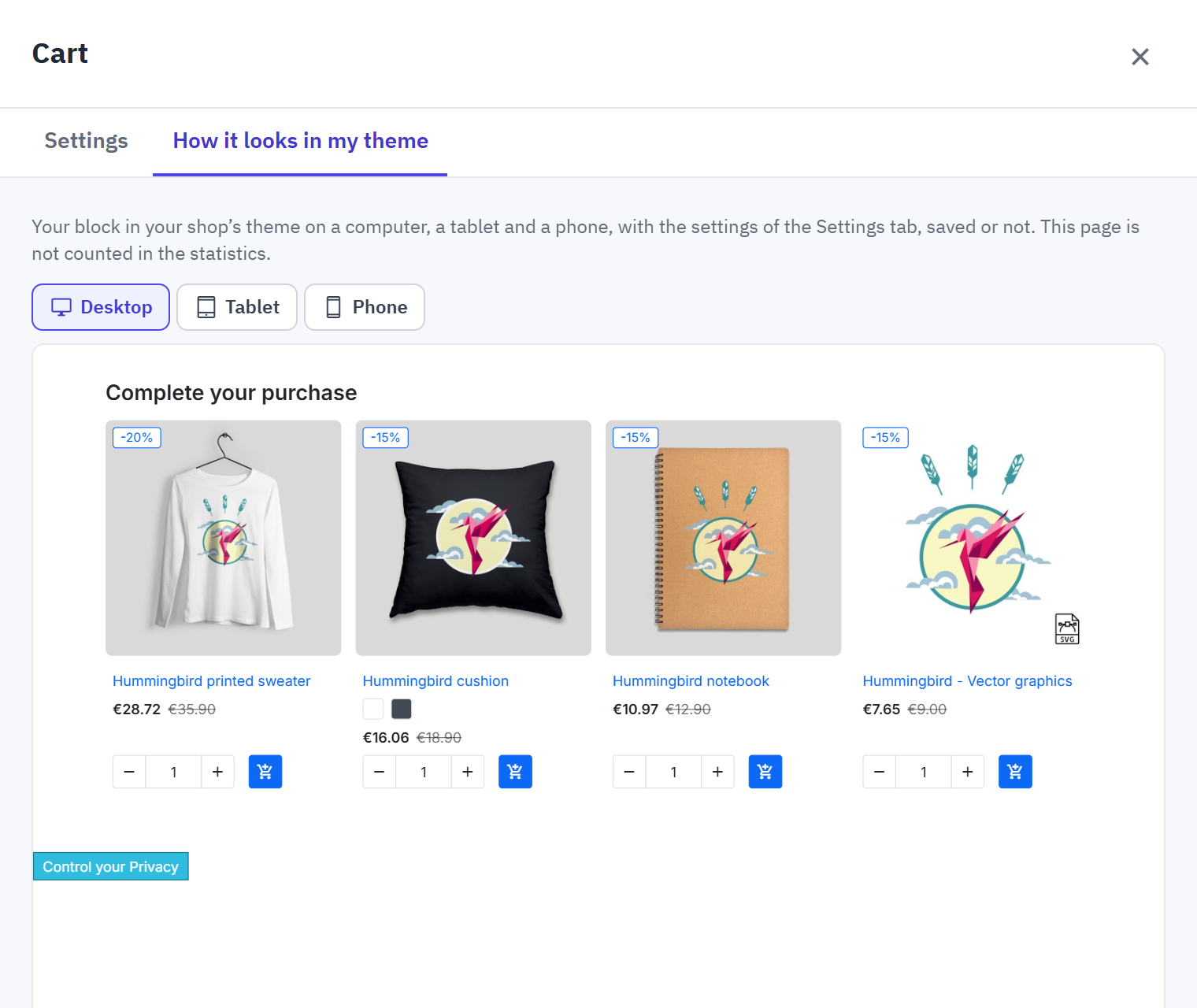
- How it looks in my theme.
- Desktop, Tablet, Phone.
See it on my shop
See it on my shop (in the list of blocks and on the dashboard map) opens the storefront page where the block shows: the home page, your best-selling product for the product page blocks, a product that cannot be ordered for Next to Add to cart, or a category page. The page scrolls to the block and outlines it with its name. When the block is not on the page, a small note says why it may be missing: it is off, it has no products for this page, or your theme has no place for it.
- The name of the block and of the module.
- The block, outlined.
A block anywhere in your theme
When your theme has no place where you want a block, add a widget tag to a template of your theme (or ask your developer). Help › How it works lists the tag of every block. With a block name, the tag uses that block’s settings, A/B test and statistics:
{widget name='psairec' placement='home'}With a strategy and a number of products, the block is independent of the blocks you set up (its title is the built-in title of the strategy):
{widget name='psairec' strategy='similar' limit=4}The strategy names for a widget tag are personalized, bought_together, viewed_together, similar, upsell, cart, recently_viewed, buy_again, trending, bestsellers and new_arrivals; the layout can be grid, carousel or list (layout='carousel'). A widget tag with buy_again shows nothing when Load the blocks after the page is on, since the tag is part of the page: use a block for it.
What your customers see
The blocks use your theme’s own product cards and section titles, so they look like the rest of your shop: prices, discount labels, colours and buttons behave as on your category pages. The pictures of this chapter come from the demo shop with the Hummingbird theme of PrestaShop 9.
On the product page
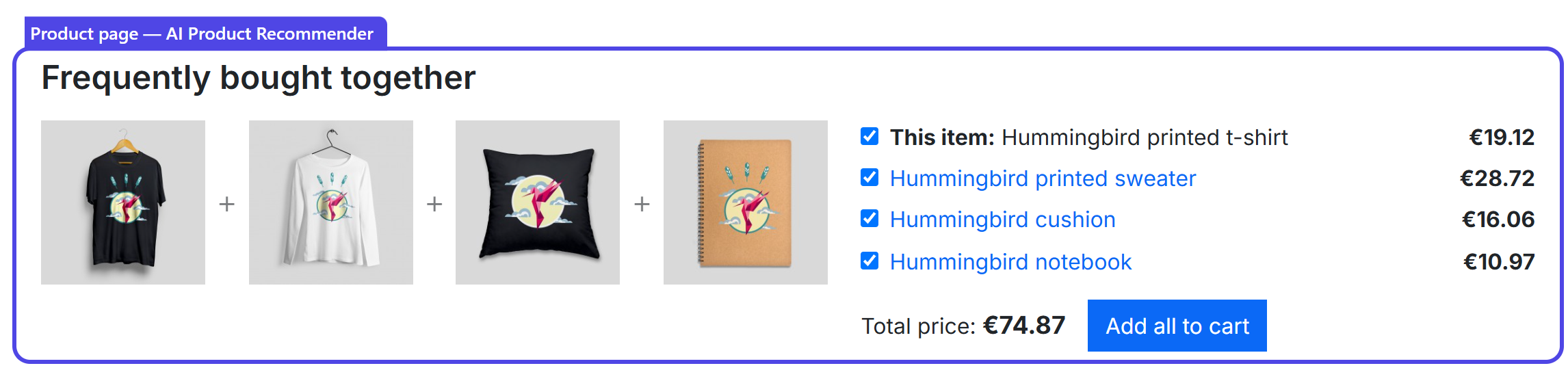
The Product page block sits under the product details. In the bundle layout it shows “Frequently bought together” with the product of the page and up to three products bought with it (figure 1.1): the customer unticks what they do not want, sees the total, and adds everything with Add all to cart. The cart preview and the pop-up of your theme update as with the theme’s own button. Products that cannot be added in one click (out of stock, a required customization, a hidden price) are shown with a disabled tick box.
The Product page, second block can show another strategy under it, for example what other visitors looked at:
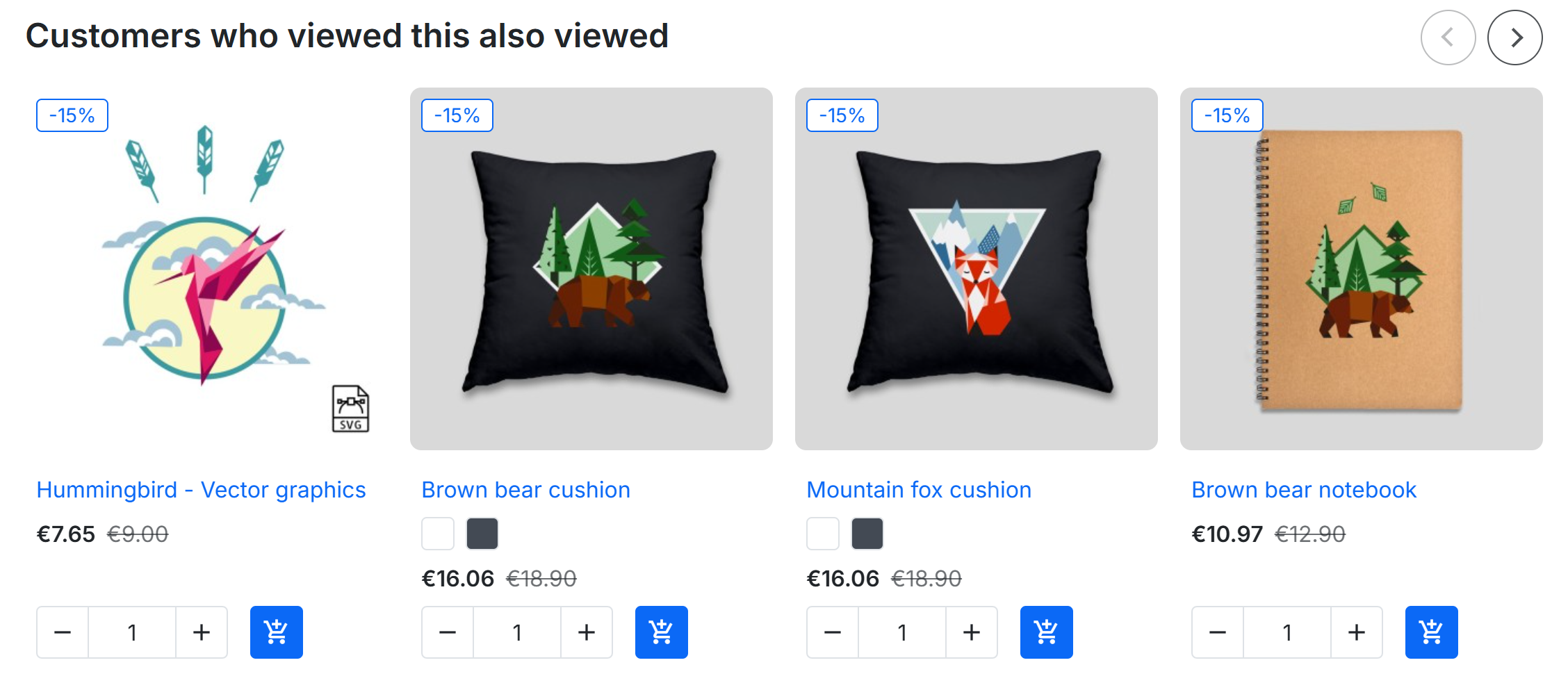
- The carousel’s arrows and dots appear only when there are more products than fit in one row.
When a product cannot be ordered
Next to Add to cart shows, by default, only when the product (or the combination the customer chose) cannot be ordered: “Available alternatives” then offers similar products the customer can buy at once, instead of a dead end.
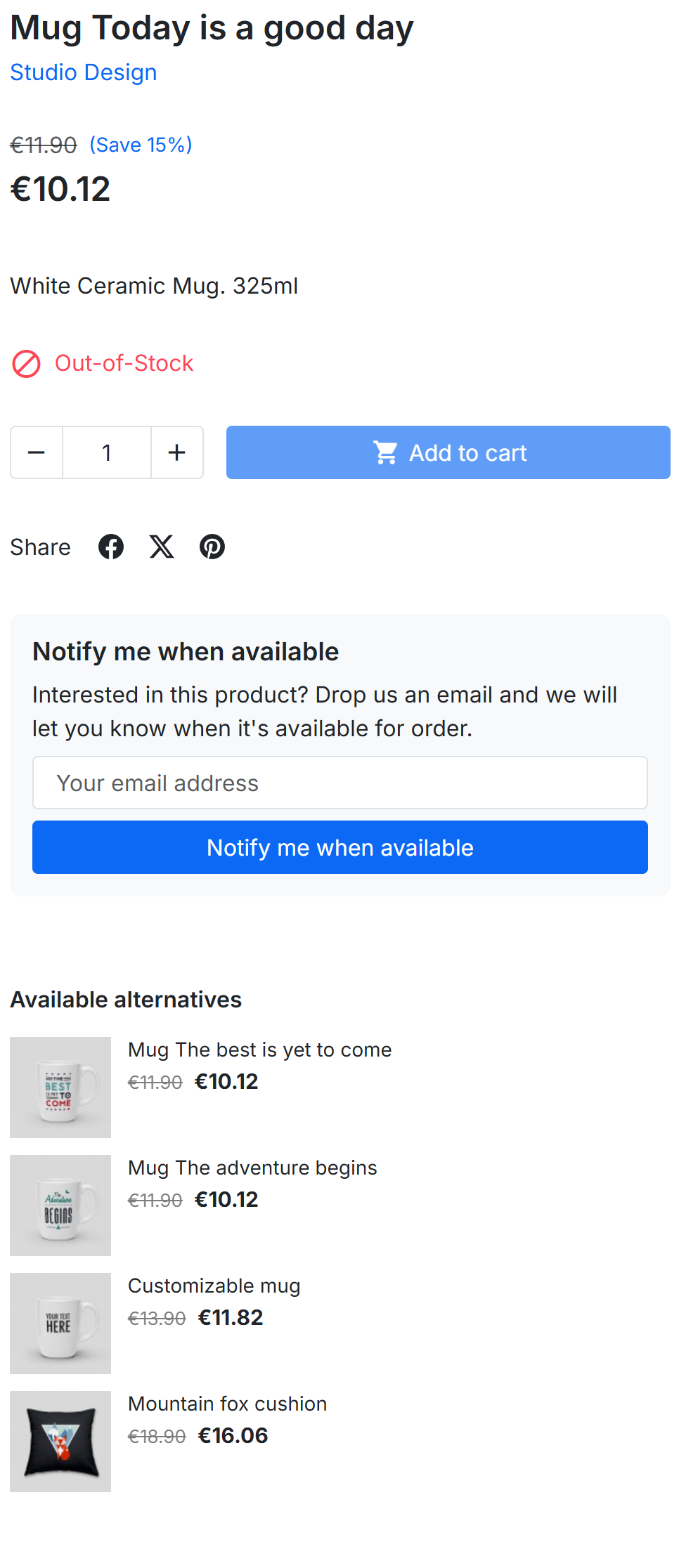
- “Available alternatives”, as a compact list.
In the add-to-cart pop-up and the cart
When a customer adds a product, the theme’s pop-up shows what other customers bought with it (the product just added counts as the cart). On the cart page, “Complete your purchase” suggests what goes with everything in the cart.
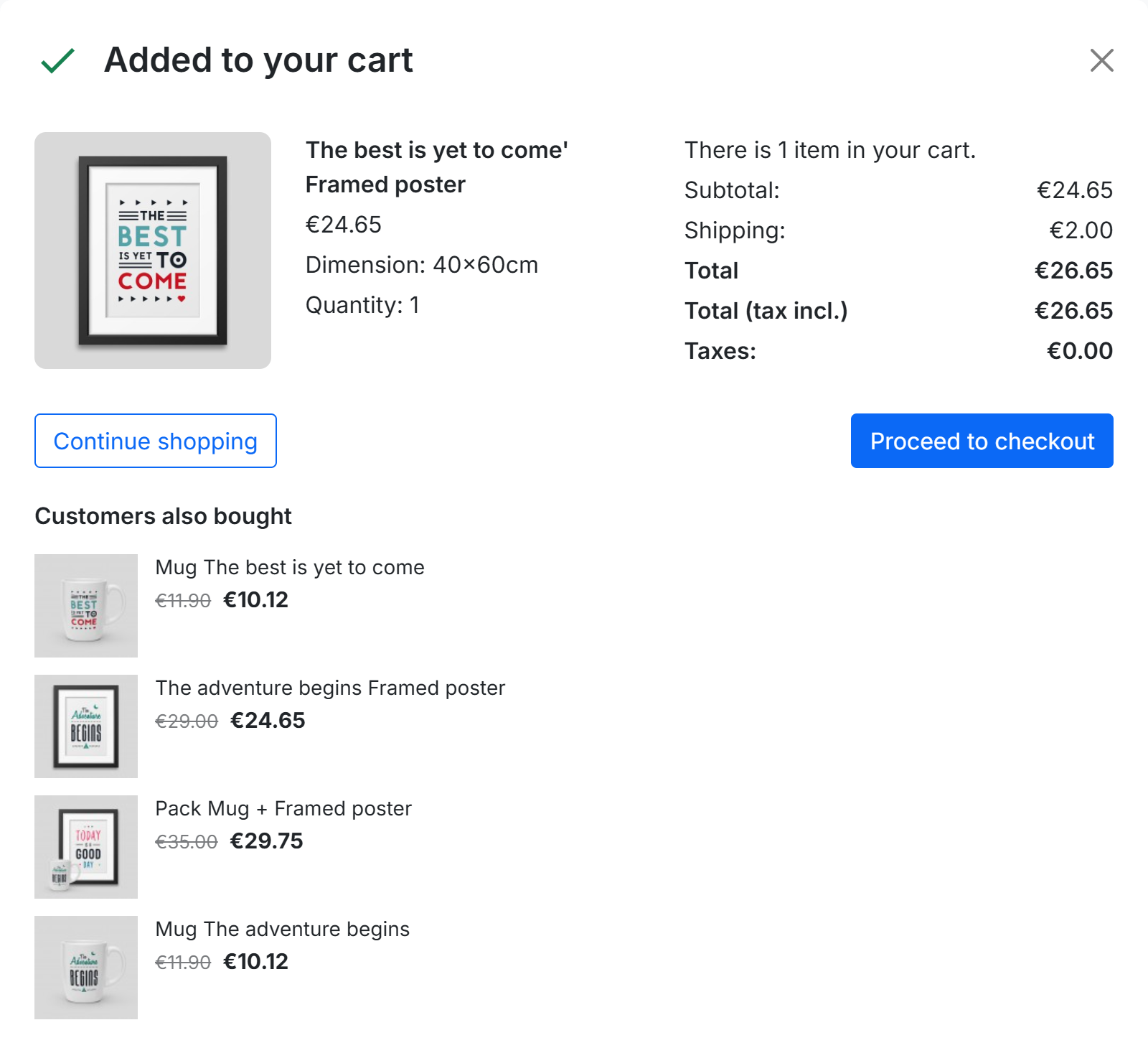
- The Add-to-cart pop-up block, as a compact list.
Home page, category pages and after the order
On the home page, “Recommended for you” gives each visitor their own picks from what they viewed, added to the cart and bought; a first-time visitor sees what is popular. Category pages can show what is trending; the order confirmation brings the customer back with picks for them.
In the customer account, the Customer account pages block shows “Buy it again” at the bottom of My account, the order history and the order details: the products the customer bought before, the most often bought first, so regular customers order them again in a few clicks. Only the logged-in customer sees it; a customer without a confirmed order yet sees personal picks or popular products.
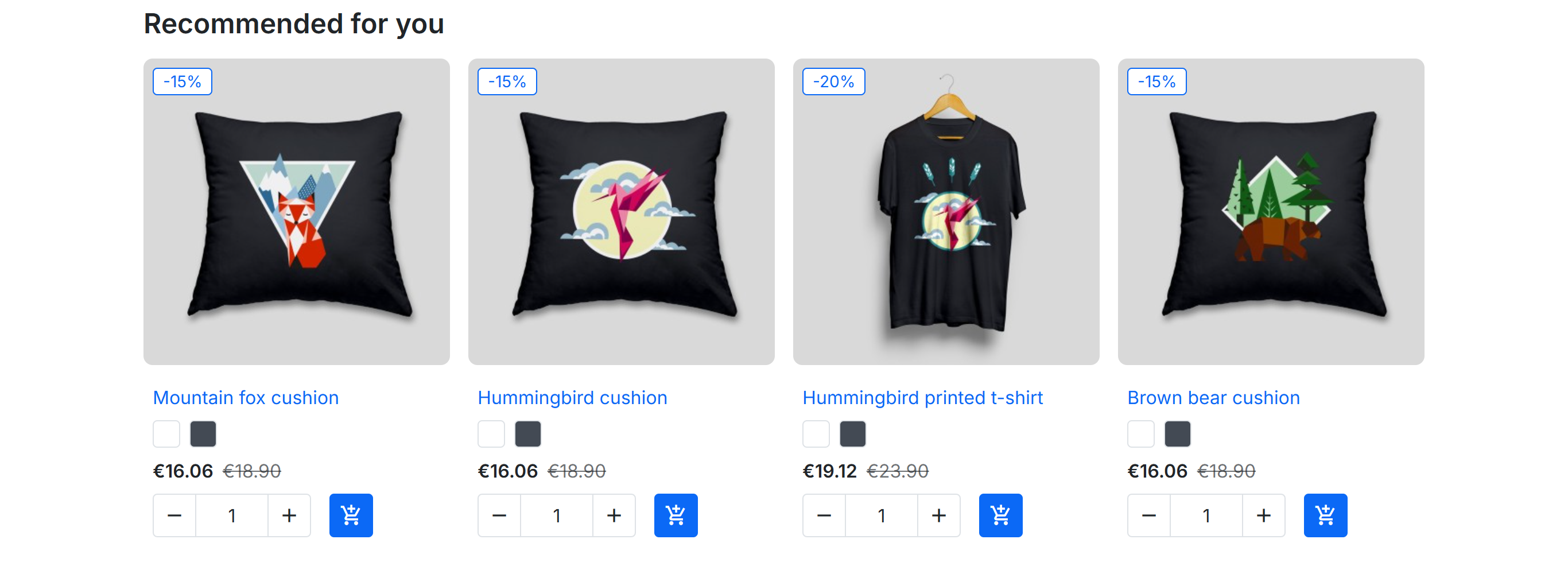
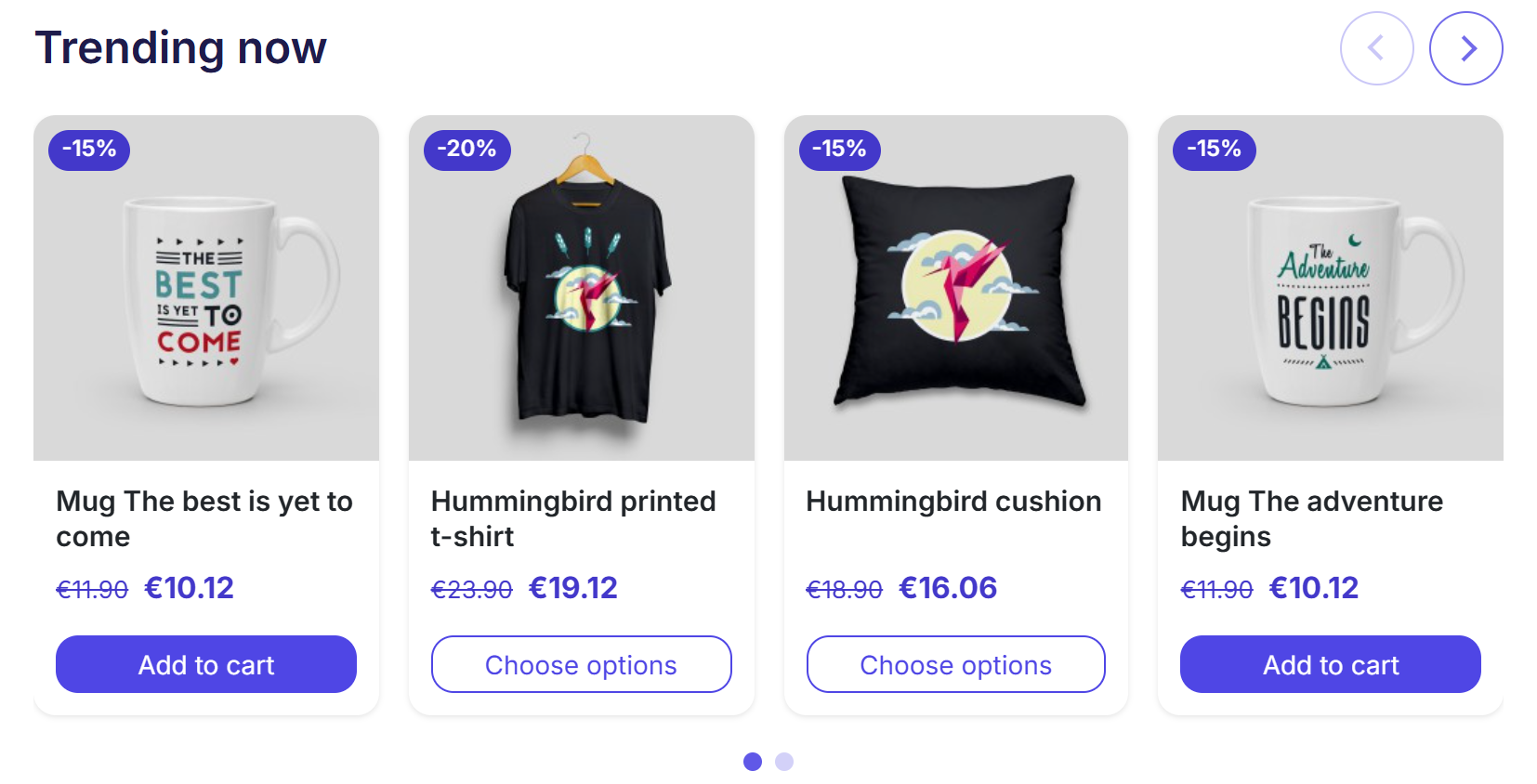
- Previous and next arrows of the carousel.